
Telegram Guide
Write a useful Telegram bot welcome message with 20 examples for support, sales, communities, courses, and more. Set it in SUCH without code.

Damian Ledesma
September 7, 2026
•
5 minutes

Set up a Telegram support team with one bot. Create a private group, add agents, and reply to customers together.
A Telegram support team lets several people answer messages sent to one bot. The customer keeps one simple place to ask for help. Your team works from a private Telegram group connected to that bot.
With SUCH, connect the bot to the private group before you add anyone else to it. After the connection is complete, add your teammates to the group and make them agents. Then incoming messages appear in the group, and agents can reply through the support bot. It is a useful setup for a small team that wants to share support without code or a separate support desk.
Prepare these three things:
Keep this group for support work. Customers do not join it. They message the bot as usual. Add team members only after the bot connection is complete.
In Telegram, create a new private group for your support team. Give it a clear name, such as Acme Support Team. Do not add your teammates yet.
Open the group settings and add your SUCH-powered support bot to this new private group.
/team to @SUCHOpen your chat with @SUCH. Choose /team from the command menu or send /team. Select Connect Group.
Choose the group that contains your support bot. Wait for @SUCH to confirm the connection.
After @SUCH confirms the connection, add the people who will answer customers to the private Telegram group.
@SUCH sends a Manage Permissions link. Open it to see the members of your group in the bot's Agents settings.
Select + beside each group member who should answer support messages. They become agents for that bot.
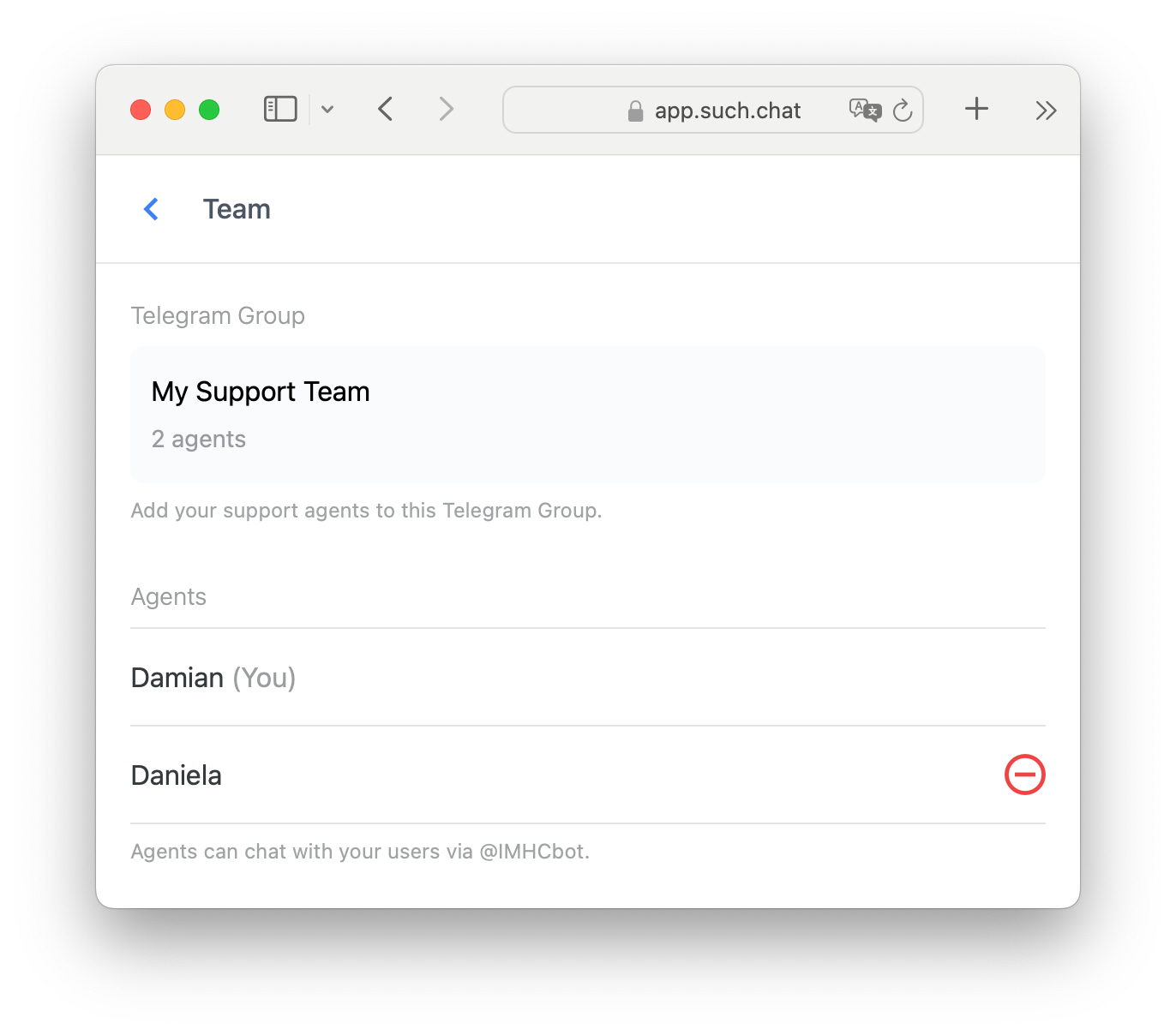
Adding someone to the group and adding them as an agent are separate steps. A member needs agent access before they can reply to a customer.
Send a message to the support bot from a separate Telegram account. Check that the team group receives it. Ask one agent to reply, then confirm that the answer arrives in the customer chat.
Your Telegram support team is ready.
Customers should not need to know which person is available. Give the bot one clear purpose, such as help with an order, a membership, a product question, or account access.
Use a short welcome message that says what the bot can help with. For questions a person should handle, tell users to send /human. The chatbot-to-human handoff guide shows how to make that route clear.
When the same question appears often, save the approved answer as a quick reply. An agent can then reuse the exact text and adjust it when the customer's situation needs more detail.
You can also use Bot AI for routine questions, with clear Instructions and approved Knowledge. A person can take over when the answer needs account context, a decision, or care. See the Telegram AI agent builder guide for that setup.
Agree on three small rules before messages arrive:
The routine is simple, but it keeps the group useful when more people join the team.
To add a new person, first make sure the bot is already connected to the private group. Then add the person to that group. Open the bot's Manage Team settings in the SUCH web app and add the new group member as an agent.
To stop someone from replying, remove their agent access from the same settings. If you no longer need the private group connected to the bot, send /delete_group to @SUCH and select that group.
Read the full SUCH teamwork setup when you need the screen-by-screen steps.
Yes. First connect the bot to a private Telegram group. Then add the right people to that group and make them SUCH agents. Incoming customer messages appear in the group, and agents can reply.
They have not been added as an agent yet. Open the bot's Manage Team settings and add the group member as an agent.
No. Customers message the support bot. The private group is only for the people handling those messages.
Yes. Once the bot is connected to the private group, add the person to that group, then add them as an agent in the bot's team settings.
Connect the bot to the new private group first. Add people to the group only after @SUCH confirms the connection, then add each person as an agent.
Write a useful Telegram bot welcome message with 20 examples for support, sales, communities, courses, and more. Set it in SUCH without code.
Save Telegram support answers as quick replies, share them with your team, and send clear replies without typing the same message again.