Back
Back to Blog

Telegram Bot Welcome Messages: 20 Examples for Support, Sales, and More

Write a useful Telegram bot welcome message with 20 examples for support, sales, communities, courses, and more. Set it in SUCH without code.

Damian Ledesma
Damian Ledesma
September 7, 2026
 • 
5 minutes

A Telegram bot has three useful first-contact texts. In @BotFather, the Description appears in a box called "What can this bot do?" before someone starts the bot. The shorter About text appears on the bot profile and when the bot is shared. In SUCH, the Welcome message is the first reply someone sees after they start the bot.

BotFather does not have a welcome-message setting. This guide is about the SUCH welcome message sent inside a chat with a support bot. It is also different from Telegram's native group and channel welcome messages for new members.

Set the three first-contact texts

First, create a bot in @BotFather. Set its Description with /setdescription: write one short, direct sentence about what the bot does. Set its About text with /setabouttext: use this shorter profile line as a reminder of the bot's purpose.

Then connect the token through @SUCH. The no-code Telegram support bot setup shows the full first connection.

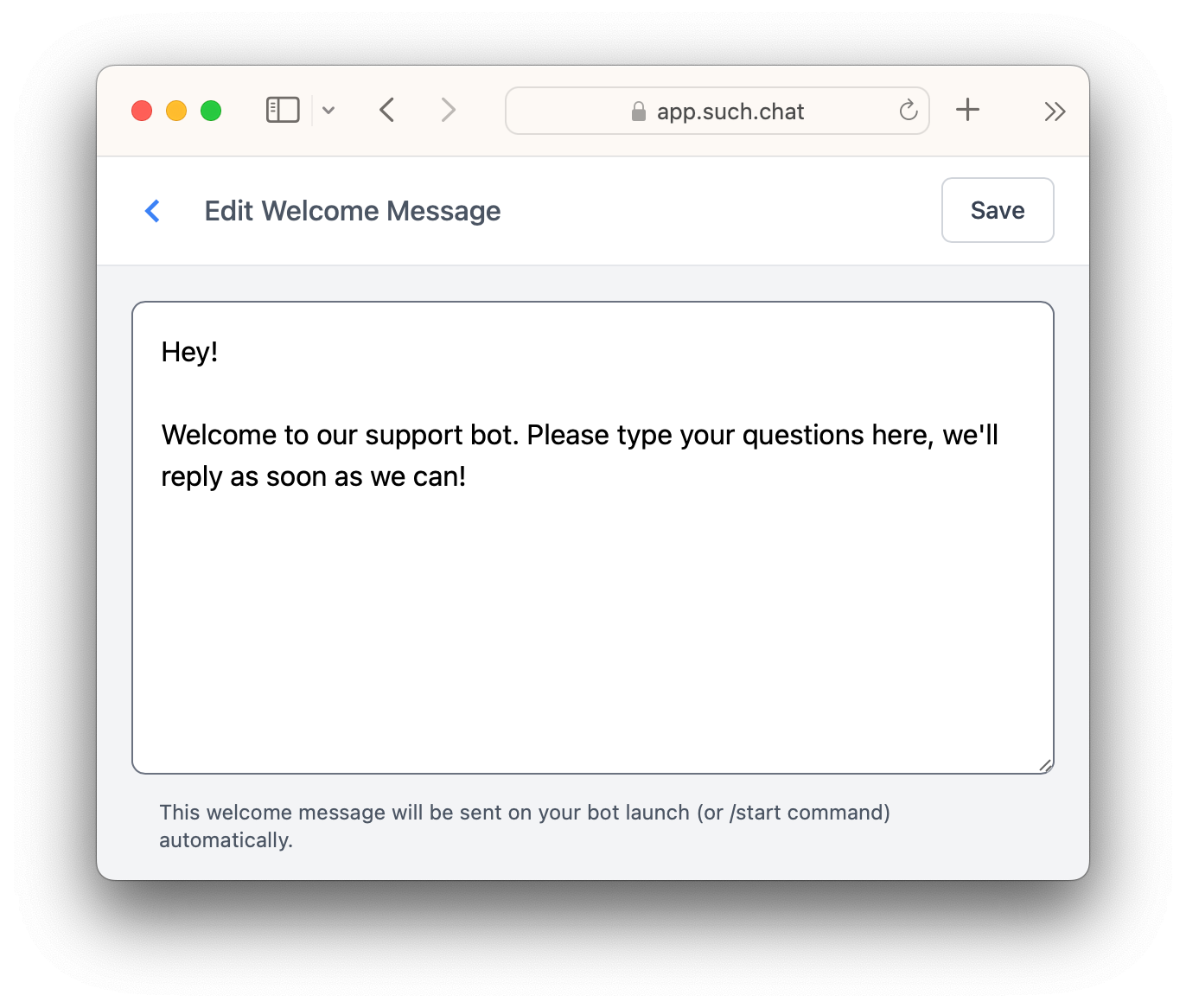
Open app.such.chat, choose the bot from the account menu, open Project Settings, select Welcome message, write the message, and save it. A person sees that message when they launch the bot for the first time.

Editing a Telegram bot welcome message in SUCH

Use a three-part structure

Keep the message short. Include:

  1. What the bot helps with.
  2. One or two things the person can do now.
  3. A route to a person when needed.

For fixed answers, put a clickable command such as /pricing or /guide in the message. Create that command in the bot with /set_command first; the Telegram bot command guide shows the steps. For questions people ask in their own words, add Bot AI with the Telegram AI agent builder.

20 SUCH bot welcome message examples

Change the words in brackets before you use an example.

Support

  1. General support: Welcome to [name] support. Ask about [product], access, or billing. Need a person? Send /human.
  2. Access help: Hi. Tell us what you cannot open and the email used for your purchase. We will help you check the access details.
  3. Technical help: Welcome to [name] help. Describe what happened, what you expected, and the device you are using.
  4. Account questions: Hi. Ask about your account or send /human to speak with our team.
  5. Service hours: Welcome to [name]. Our team replies Monday to Friday, 9:00 to 17:00 UTC. Send your question here and include any useful details.

Sales and product questions

  1. Simple sales help: Welcome to [name]. Ask about plans, features, or getting started. For prices, send /pricing.
  2. Product guide: Hi. New to [product]? Send /guide for the first steps, or write your question here.
  3. Demo request: Welcome. Tell us what you want to do with [product] and we will help you find the right next step.
  4. Digital product: Hi. Ask about [course or resource], what is included, or how to get access.
  5. Pre-purchase question: Welcome to [name]. Write the question you need answered before choosing a plan.

Courses and communities

  1. Course support: Welcome to [course] support. Ask about lesson access, schedules, or files. Need help from the team? Send /human.
  2. Student start: Hi. Send /start_here for the first lesson, or ask about your course access.
  3. Member community: Welcome to [community]. Ask about membership, the group, or where to find this week's resources.
  4. Event attendees: Welcome to [event] help. Ask about the schedule, joining instructions, or event materials.
  5. Creator community: Hi. Ask about [creator]'s community, member access, or the latest resource.

Services and projects

  1. Agency support: Welcome to [agency]. Tell us what you need help with and include the project name if you have one.
  2. Local service: Hi. Ask about [service], availability, or how to book. Tell us your city and the date you need.
  3. Nonprofit or project: Welcome to [project]. Ask about our work, ways to take part, or where to find more information.
  4. Feedback: Hi. Tell us what worked, what did not, and what you would change. Thank you for helping us improve [product].
  5. Simple contact bot: Welcome to [name]. Write your question in one message. We will reply here.

Test it as a customer

Open the bot from another Telegram account, press Start, and read the message as a new customer would.

Check that:

  • the BotFather Description explains the bot before someone starts it;
  • the About text is still useful on the bot profile;
  • it says what the bot is for;
  • every command in the message already has a reply;
  • links and files open correctly; and
  • /human leads to a team that can reply.

For the team side of that last step, read the chatbot-to-human handoff guide.

FAQ

Does a Telegram bot send the welcome message before someone starts it?

No. A person must open and start the bot before it can send the first reply.

Can I set a welcome message in BotFather?

No. In BotFather, set the Description and About text. Set the message the bot sends after Start in SUCH.

Can I use a welcome message in a Telegram group instead?

Telegram has a separate native welcome-message feature for groups and channels. A SUCH bot's welcome message is the first reply in a chat with that bot.

Can I format a SUCH bot welcome message?

Yes, with SUCH PRO. You can format the text in the welcome-message editor.

Suggested articles
Telegram Support Team: How Multiple Agents Can Reply From One Bot
Telegram Guide
Telegram Support Team: How Multiple Agents Can Reply From One Bot

Set up a Telegram support team with one bot. Create a private group, add agents, and reply to customers together.

Damian Ledesma
Damian Ledesma
September 9, 2026
 • 
5 minutes
Telegram Support Quick Replies: How to Save and Reuse Answers
Telegram Guide
Telegram Support Quick Replies: How to Save and Reuse Answers

Save Telegram support answers as quick replies, share them with your team, and send clear replies without typing the same message again.

Damian Ledesma
Damian Ledesma
September 5, 2026
 • 
4 minutes