
Support Bots
Set up chatbot-to-human handoff in Telegram. Let customers ask for a person, reply from your team, and return to AI after the chat is closed.

Damian Ledesma
July 21, 2026
•
5 minutes

Use Open, Snoozed, and Closed chats in Telegram support. Know what each status means, when a chat reopens, and how to keep messages moving.
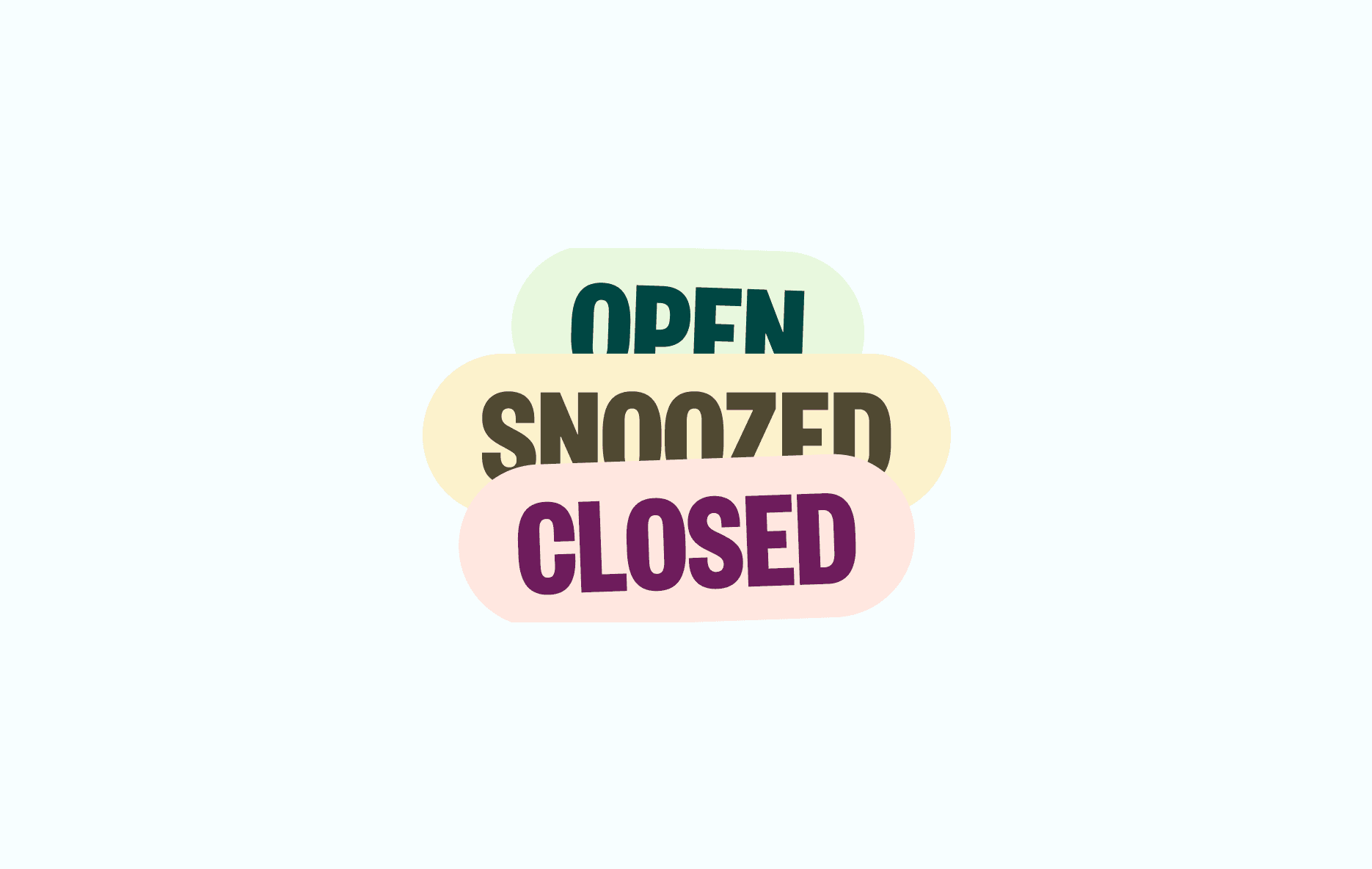
Telegram support works best when every conversation has one clear place in the work queue. A new request needs attention, a waiting request needs a reminder, and a finished request should leave the active list.
In the SUCH web app, those three states are Open, Snoozed, and Closed. They help a person or a small team keep support conversations from one or more Telegram bots in order. They do not change what the customer sees in Telegram. They show the team what needs to happen next.
| Status | Use it when | What happens next |
|---|---|---|
| Open | A customer needs an answer or the team needs to act. | Keep the chat in the active list until it is answered, snoozed, or closed. |
| Snoozed | You need to return to the chat later. | Choose a time for it to return to Open. A new message from that user also moves it back to Open. |
| Closed | The customer has the answer and the work is finished. | The chat leaves the active list. Reopen it when the team needs to continue. |
The statuses are for the team, not labels you need to explain to customers. A customer can simply keep sending messages to the same bot.
Use Open for work that needs attention now. This includes a new question, a request that needs a human decision, or a conversation another agent has asked you to continue.
Open the chat, read the earlier messages, and send the answer in the same Telegram conversation. The customer does not need a new support link or a second bot. When a new-message notification arrives, select Open Chat to open that Telegram conversation in app.such.chat. The reply you send there is delivered by the bot, so the customer stays in Telegram while the team works in the web app.
When several people reply from one bot, agree on who takes each Open chat before answering. The Telegram support-team guide explains how to give the right people access. For repeated answers, use quick replies so links, policies, and instructions stay consistent.
Use Snoozed when the next useful action is not now. For example, you may be waiting for a delivery update, planning to check an account the next morning, or giving a customer time to send a file.
In app.such.chat, open the conversation and select the clock icon. Choose when you want the chat to return to Open. It will return to the active list at that time. If the customer writes before then, the chat becomes Open straight away, so a new message is not hidden in the Snoozed list.
Snoozing is better than closing a request that still needs your action. It lets the team clear the active list without losing the reminder.
Use Closed after the customer has what they need and there is no team action left. In the web app, select the check icon next to the snooze control.
Closing a chat is also useful for a SUCH AI bot. AI replies work in Closed chats. When a customer needs a person, they can send /human; the chat moves to Open and the team can reply. The chatbot-to-human handoff guide covers that customer-facing setup.
Do not close a chat just because you sent one message. If you promised to check something, use Snoozed instead. If the customer is still describing the problem, leave it Open.
A team member can move a Closed chat back to Open in the web app. Open the conversation and use the circled-arrow control at the top right.
Reopen it when a previous request needs another team action: a correction, a follow-up the team promised, or an answer found after the chat was closed. This puts the conversation back with the current work instead of treating it as an old record.
At the top left of the SUCH web app, filter conversations by Open, Closed, or Snoozed. You can also filter by bot when the same team supports more than one Telegram bot. Muted and Blocked conversations have their own filters too. Use Mute when you only want to silence a conversation and Block when a person must stop using the bot. In Telegram, replying with /ban to that person's message also blocks them from contacting the bot through the support workflow; it does not remove them from a Telegram group. Those are moderation controls, not a substitute for Open, Snoozed, or Closed.
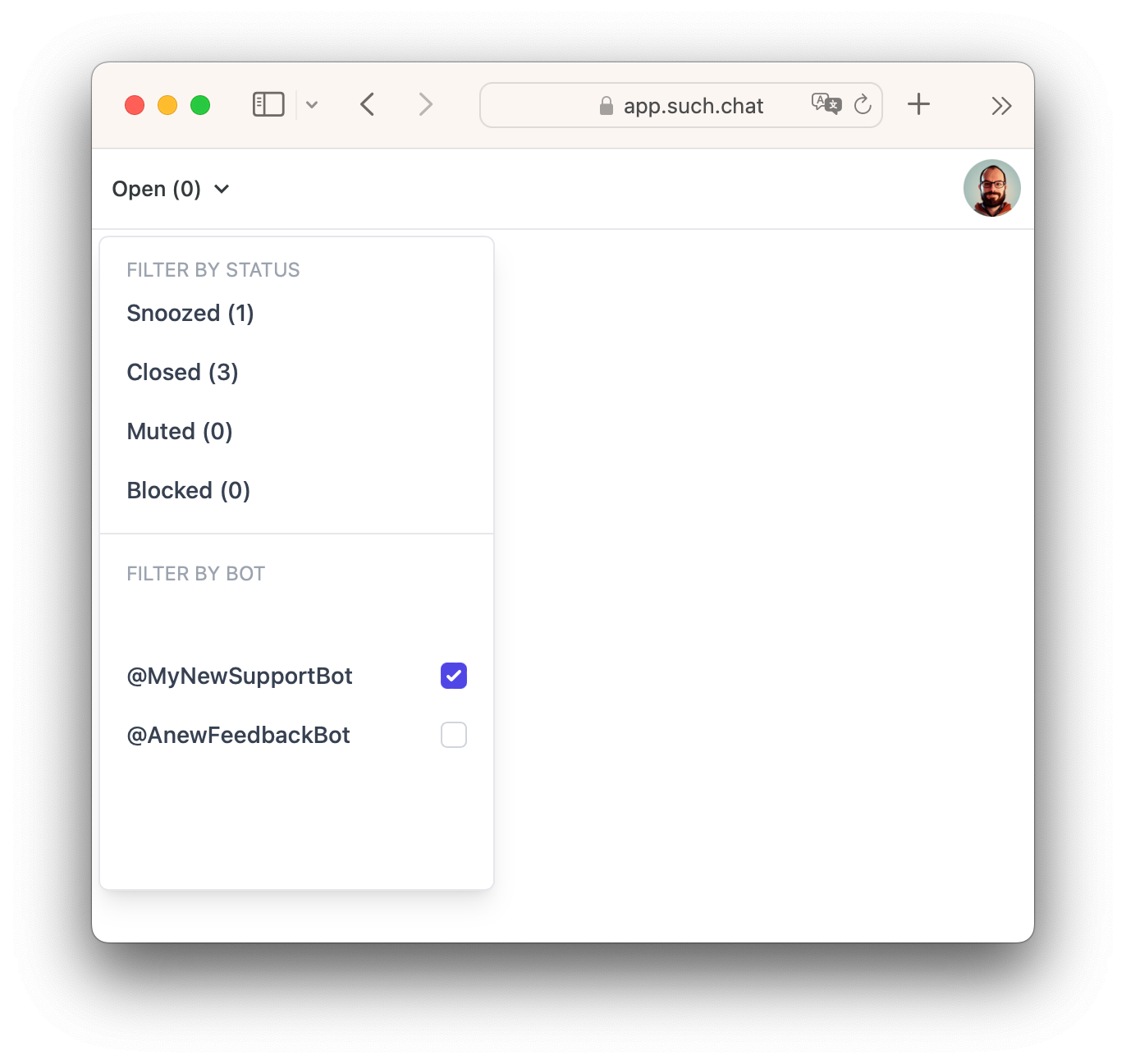
Status filters separate current work from snoozed, closed, muted, and blocked conversations.
A simple daily routine is enough:
That routine keeps the active list about current work, rather than a long history of every message the bot has received.
Write a one-line rule for each status and use the same rule across the team. For example: Open means "someone owns the next reply"; Snoozed means "we need to return at a known time"; Closed means "no team work remains."
This is especially useful when the bot answers some routine questions with AI and people handle the rest. The status shows whether the next reply belongs to the team or can be handled by the bot after the conversation is closed.
When a group needs one broad instruction rather than a private answer, use a pinned welcome message and keep the support bot for individual questions.
For the screen-by-screen controls, see the SUCH chat-status help guide.
Yes. A new message from that user moves a Snoozed SUCH chat back to Open. The chat also returns to Open at the time selected when it was snoozed.
Snoozed means the team still has work to do later. Closed means the team has finished the request for now.
Yes. Open the chat in the SUCH web app and use the circled-arrow control to move it back to Open.
No. Closing changes its status. The conversation remains available in the Closed filter.
/human to a SUCH AI bot?The chat moves from Closed to Open and the support team is notified. The team can then reply in the same Telegram conversation.

Set up chatbot-to-human handoff in Telegram. Let customers ask for a person, reply from your team, and return to AI after the chat is closed.

For Telegram support, SUCH can be completely free. Compare optional AI and PRO costs with helpdesk, WhatsApp, and custom chatbot prices.