
Telegram Guide
Find a customer's Telegram user ID in SUCH or bot notifications, then use it for a custom broadcast.

Damian Ledesma
October 30, 2026
•
4 minutes

Manage several Telegram support bots in SUCH by keeping each bot's purpose, settings, and team access separate.
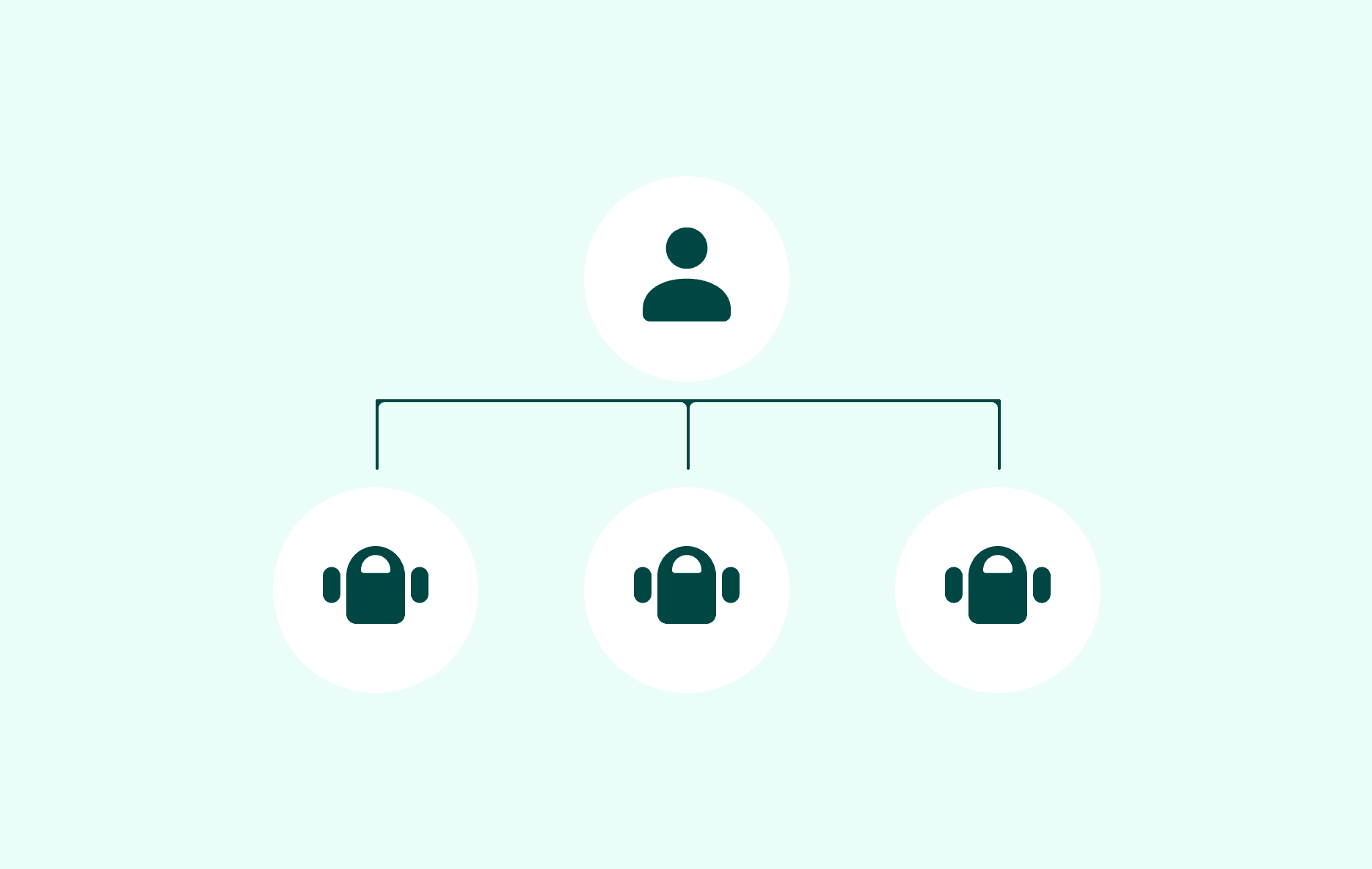
One Telegram account can create and own multiple bots through @BotFather. Each bot has its own username and token, so customers contact one bot at a time. Telegram handles the bot identity, but it does not give an owner a shared support workspace for setting replies, preparing a team, or working through customer conversations.
SUCH connects each bot as its own support project. Select a connected bot in app.such.chat to set its welcome message, quick replies, Bot AI, and team access. First decide whether the customer routes should be separate; then connect the bot and configure the support agents and replies for it.
Use a separate bot when its customer conversations need a different route from the first one. Common examples include:
| Separate bot | Reason to keep it separate |
|---|---|
| A second product | It needs its own support information, welcome message, and links. |
| A different brand | Customers should see the right identity from the first message. |
| A different language | The replies, quick replies, and responsible team can stay in that language. |
| A specialist support route | A different team needs to handle a distinct type of request. |
Do not create another bot merely to divide a small number of conversations. One bot with a clear welcome message, custom commands, and a human route is often easier for customers to understand. Before you connect a new bot, write down its customer-facing purpose and the support agent or team that takes over when a question needs help.
| Bot | Customer-facing purpose | Human route |
|---|---|---|
Acme Store Help |
Delivery, returns, and product questions | Store support team |
Acme Partners |
Partner onboarding and account questions | Partnerships team |
This gives every later setting a reference point. The welcome message should match the bot's job, saved replies should cover its recurring questions, and Bot AI should answer only within that scope.
Create the additional bot in BotFather with /newbot, copy its token, and send it to @SUCH. Repeat the connection for every bot you want to use for support. A token belongs to one bot, so label the token and the bot's purpose carefully before you send it.
After a bot is connected, open app.such.chat. Click your profile picture or account icon, choose the bot's name, and open Project Settings. Check the bot name at the top of the page before you change anything. That is the settings area for the bot you selected.
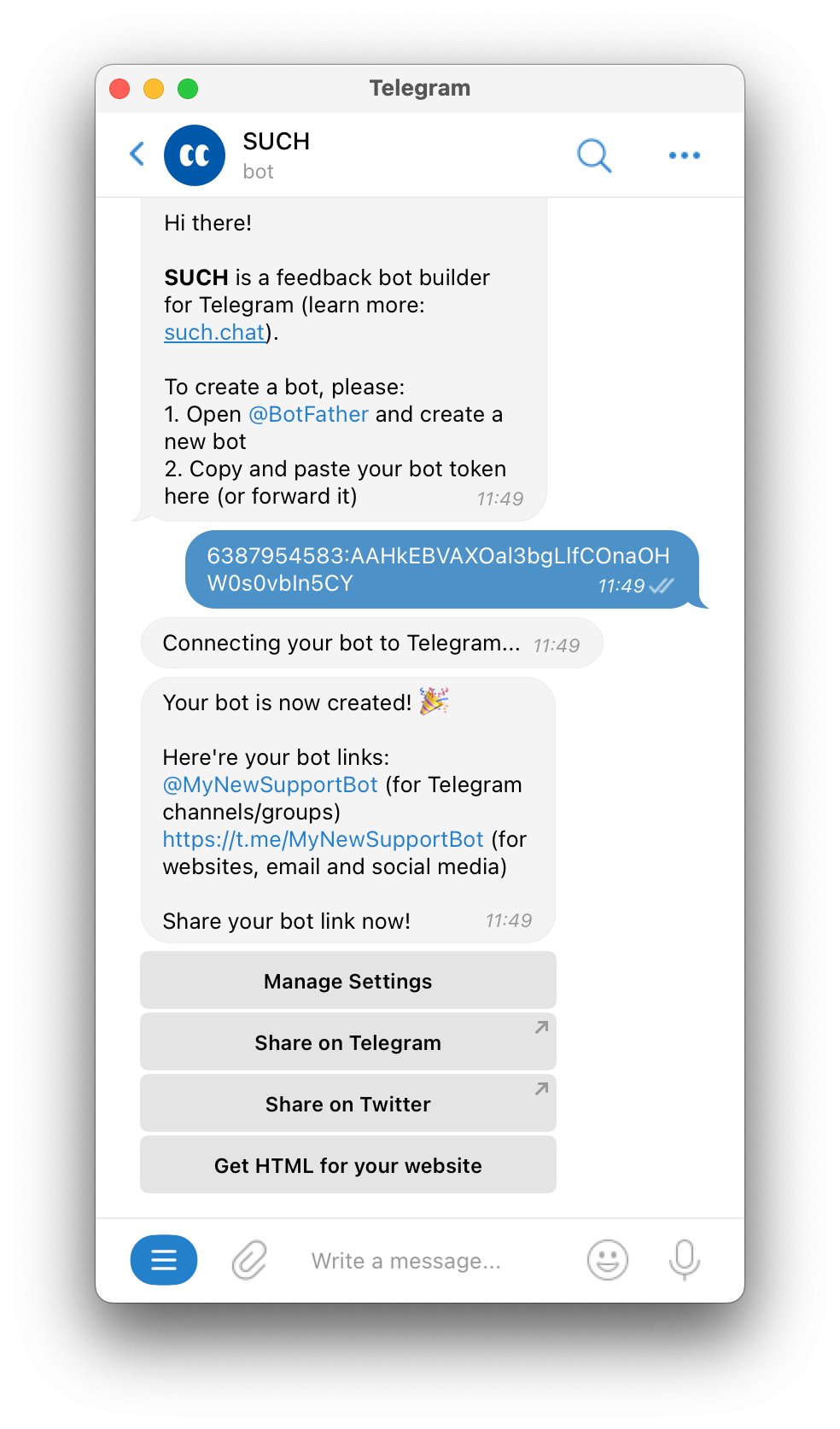
Use the no-code Telegram support bot setup for the complete first-bot connection steps.
In the selected bot's Project Settings, configure the parts that belong to its job:
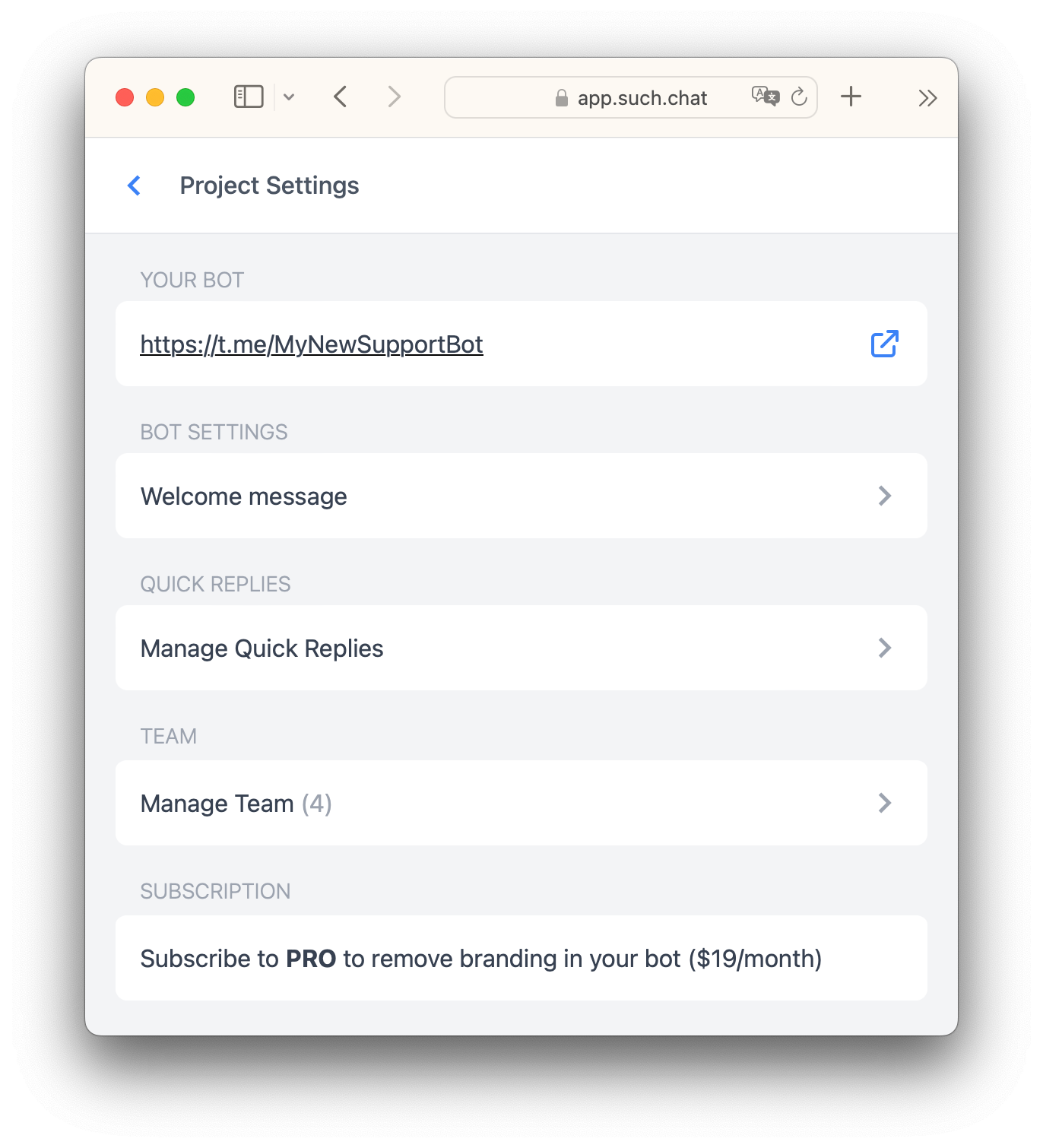
When two bots need similar information, check the names, links, policies, and routes before you save it. A copied reply that points to the wrong product is not useful to the customer.
If support agents will answer through Telegram, create a private support group for the selected bot. Add that bot to the group, send /team to @SUCH, select Connect Group, and choose the group. Wait for the connection confirmation before you add any support agents to the group.
After the group is connected, add the support agents who should reply to the group, then make each of them an agent in the bot's Manage Team settings. A support agent in the Telegram group can see the support workflow, but agent access is what lets that support agent answer customers.
The Telegram support team guide has the full setup with the exact order. Keep group names unmistakable, such as Acme Store Support and Acme Partners Support, so support agents can see which bot's customer conversations they are handling.
In app.such.chat, open your account icon or photo and select the correct bot before you go to Project Settings. Check the bot name before you edit a welcome message, quick reply, Bot AI setting, or team access.
When a Telegram notification arrives, choose Open Chat to handle that conversation in the SUCH web app. For policies that apply to more than one bot, keep one approved source for the facts and review the customer-facing wording in each bot before you publish it.
Review each bot after a policy, price, link, or team change. Update the bot that owns the change. Customers should be able to see the right path from the bot name, description, welcome message, and links before they send a message.
Yes. Create each bot through @BotFather, then connect each one through @SUCH. In app.such.chat, click your profile picture or account icon, select the connected bot, and open its Project Settings to manage that bot's support setup.
No. Use BotFather to create the Telegram bot and get its token. After you connect that token to @SUCH, configure the bot's welcome message, quick replies, Bot AI, and support team in SUCH.
After each private support group is connected, add the support agent to every group they should work in. Then grant agent access to that support agent in each bot's Manage Team settings.
Open app.such.chat, click your profile picture or account icon, select the bot's name, and open Project Settings. Check the bot name before you edit its welcome message, quick replies, Bot AI, or team access.
Use a separate private group when separate teams or responsibilities need to stay clear. Give the group a name that matches the bot, then connect the bot before you add team members and agents.

Find a customer's Telegram user ID in SUCH or bot notifications, then use it for a custom broadcast.

Export customer-support conversations from owned SUCH bot projects, with or without media files, in a downloadable ZIP.