
Telegram Guide
Fix a Telegram bot that does not reply by checking its connection, reply setup, AI credits, team access, or group privacy.

Damian Ledesma
October 11, 2026
•
7 minutes

Stop Telegram bot spam messages without losing real support requests. Know when to mute, block, clear, delete, or ban a user in SUCH.

Spam in a Telegram support bot is not one problem. A person who sends several messages quickly may only need fewer notifications; a persistent unwanted sender needs to be stopped from using the bot; an old conversation may need to be removed from the support inbox. Those actions have different results.
Use Mute for notification noise, Block to stop a person messaging the bot from the SUCH web app, Clear to remove messages, and Delete to remove the whole chat. When you are replying in Telegram, use /ban to stop that person from contacting the bot through the support workflow. Neither Block nor /ban removes someone from a Telegram group.
| Action | Use it when | What it changes |
|---|---|---|
| Mute | A chat is noisy, but the person may still need help. | New messages stop sending notifications and the chat moves to the Muted box. The person can still write to the bot. |
| Block | A person should no longer be able to use the bot. | Stops that person from messaging the bot. You can keep or remove their history while blocking. |
| Clear | You need to remove the messages but do not need to remove the whole chat record. | Removes the chat's messages from SUCH. |
| Delete | The conversation and its messages no longer need to remain in the inbox. | Removes the whole chat and its messages. Deleted messages cannot be recovered. |
| Ban | You are handling a customer's message in Telegram and they should no longer contact the bot. | Reply with /ban to block them from the bot's support workflow. It does not remove them from a Telegram group. |
Use Mute when a user is sending enough messages to interrupt the team, but you may still want to respond. In the SUCH web app, open the chat and select the user's name or icon to open User Info. The controls for Mute, Block, Clear, and Delete are all there.
Select the mute button in User Info.
The chat moves to Muted and later messages from that person do not send notifications. It does not stop the person from writing to the bot.
When the conversation needs attention again, open the same User Info pane and select the unmute button.
Mute gives the team room to prepare one complete answer without cutting off a legitimate customer.
Use Block when you need to stop someone from sending more messages to the support bot. Open their User Info pane, select the more option, then choose Block Chat.
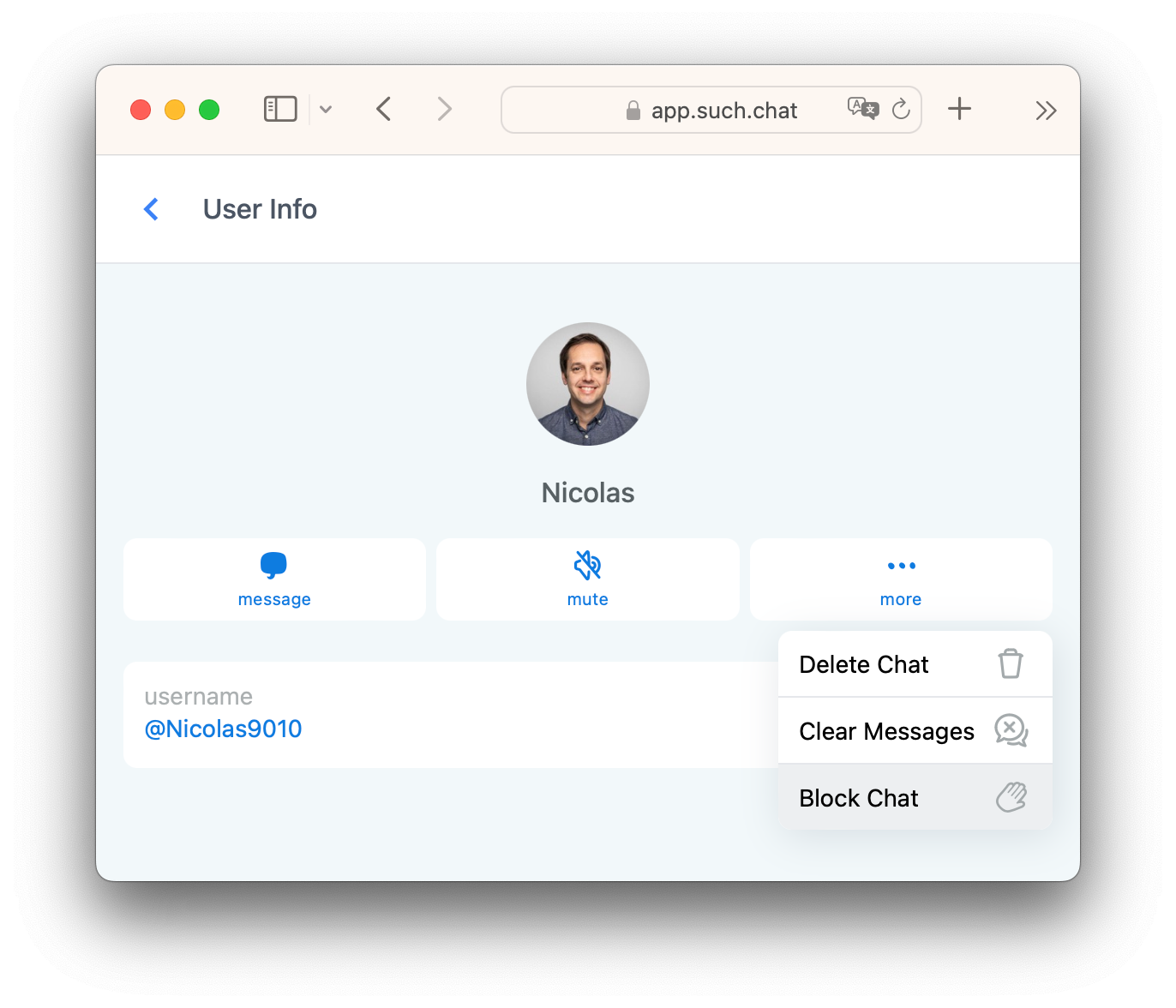
During that action, SUCH gives the owner the option to delete the chat history. Leave the history-deletion choice selected when the messages themselves should be removed. Clear it when you need to keep the record before blocking the user.
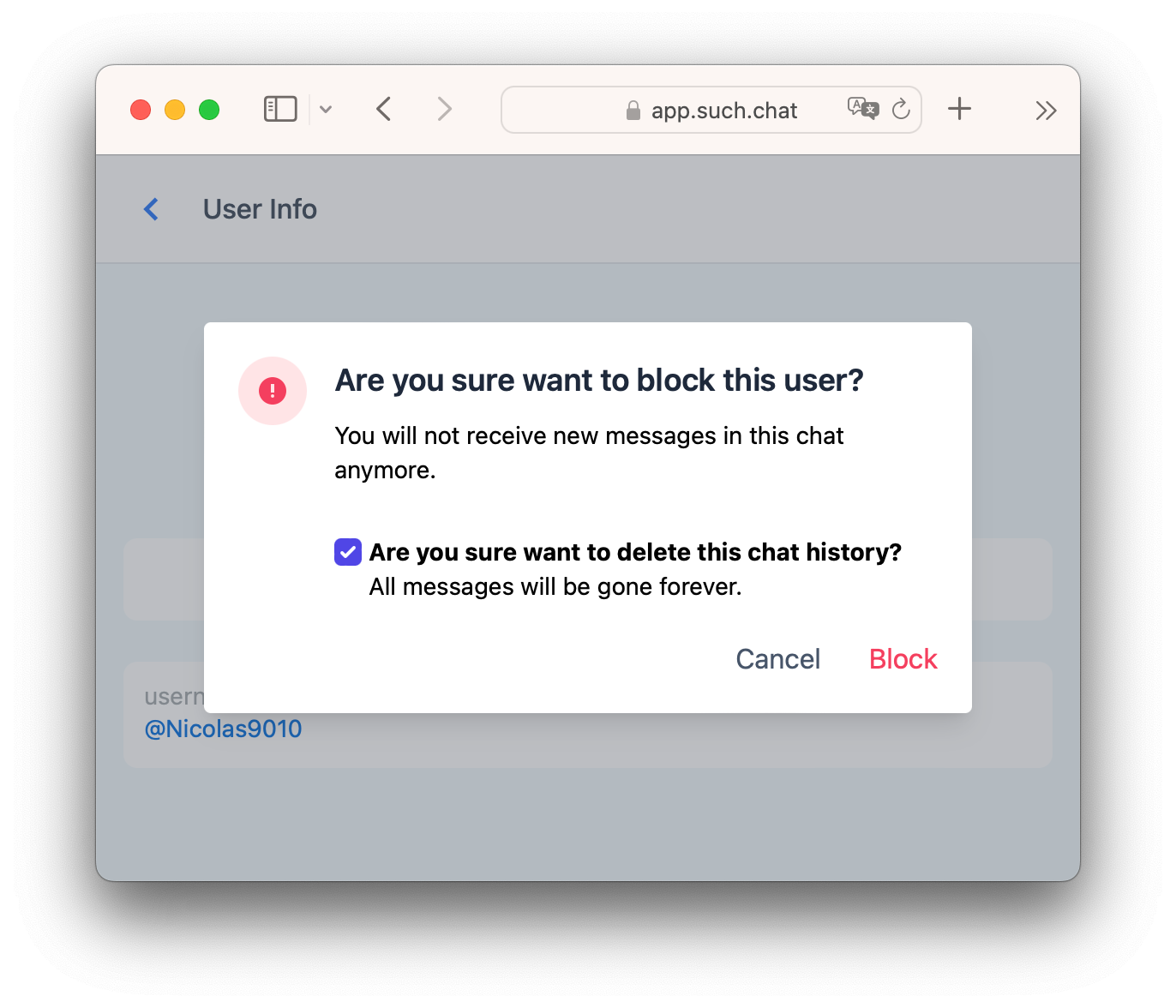
The chat moves to the Blocked box.
Unblock later from the chat or its User Info pane.
Reserve Block for repeated spam, abusive messages, or unwanted links, not a customer who sends a few follow-ups.
Use Clear Messages when the messages need to leave the SUCH inbox. In User Info, select the more option, then choose Clear Messages.
The messages are removed from the SUCH chat.
Use Delete Chat when the chat itself and its messages no longer need to remain there. Choose Delete Chat from the same more menu. Both actions are permanent: deleted messages cannot be recovered.
The time of the message matters. When you clear or delete messages within 48 hours of sending, SUCH also removes them from the Telegram support bot or the connected support group. After 48 hours, the action still clears the SUCH record, but the Telegram copy remains. Telegram places the same 48-hour limit on bot message deletion.
Keep history needed for an unresolved question or follow-up. Clearing a conversation does not stop a person from returning; use Block for that.
For the exact controls, read the SUCH guide to muting, blocking, clearing, and deleting chats.
/ban when you are handling spam in TelegramBlock Chat in the SUCH web app and /ban in Telegram both stop a customer from contacting the support bot. Use the option that matches where you are handling the conversation. Neither action removes a member from a Telegram group; use that group's own administrator controls when group membership is the problem. The SUCH guide to banning users has the Telegram steps.
For a personal Telegram contact rather than a bot user, see the guide to blocking someone on Telegram.
Only the bot owner can mute, block, clear, or delete chats in the SUCH web app. Give agents a clear route for flagging a moderation issue to that owner.
A small rule is enough:
/ban when handling the conversation in Telegram and you need to block the customer from the bot.Keep normal support requests in the usual workflow. The Open, Snoozed, and Closed chat guide explains how to manage conversations that are waiting, active, or finished. Mute, Block, Clear, Delete, and Ban are moderation decisions, not replacements for those work states.
No. Mute stops notifications and moves the chat to Muted. Use Block to stop the user messaging the bot.
Yes. Block Chat lets you remove the history or keep the messages.
Only messages under 48 hours old are also removed from the Telegram bot or support group. Older Telegram copies remain.
No. Those actions are available to the bot owner. Agents should flag the conversation to the owner.
Block is the web-app control for stopping a person from messaging the support bot. /ban is the Telegram command that blocks the customer from the same support workflow. Neither action removes someone from a Telegram group.

Fix a Telegram bot that does not reply by checking its connection, reply setup, AI credits, team access, or group privacy.
Set up a Telegram support team with one bot. Create a private group, add agents, and reply to customers together.