
In the SUCH web app, you can stop notifications, remove messages and chats, or decide who can use your bot.
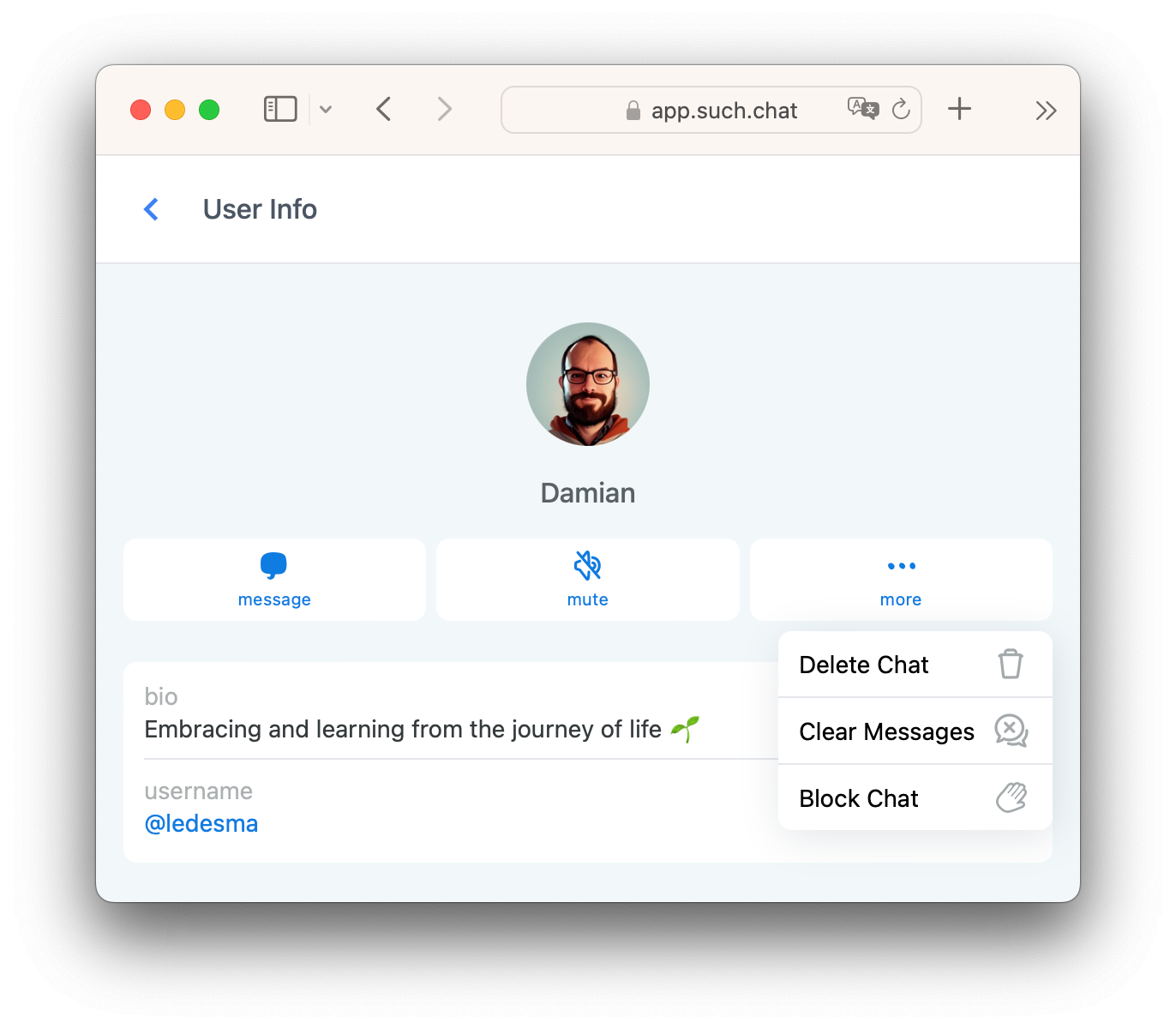
In the User Info pane, the bot owner can mute, block, clear, and delete chats.
To open the User Info pane, click or tap the user’s name and icon in your chats.
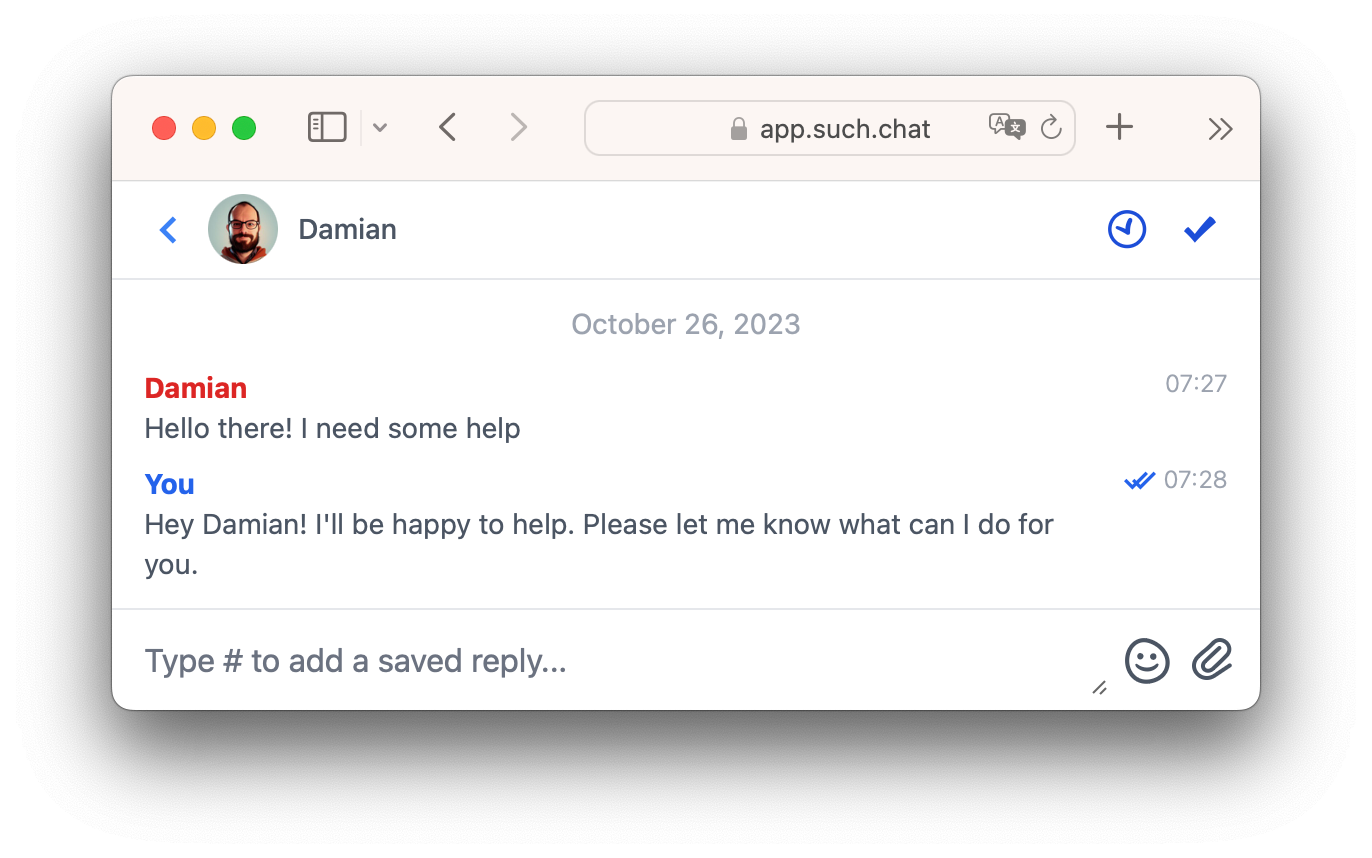
How to mute chats
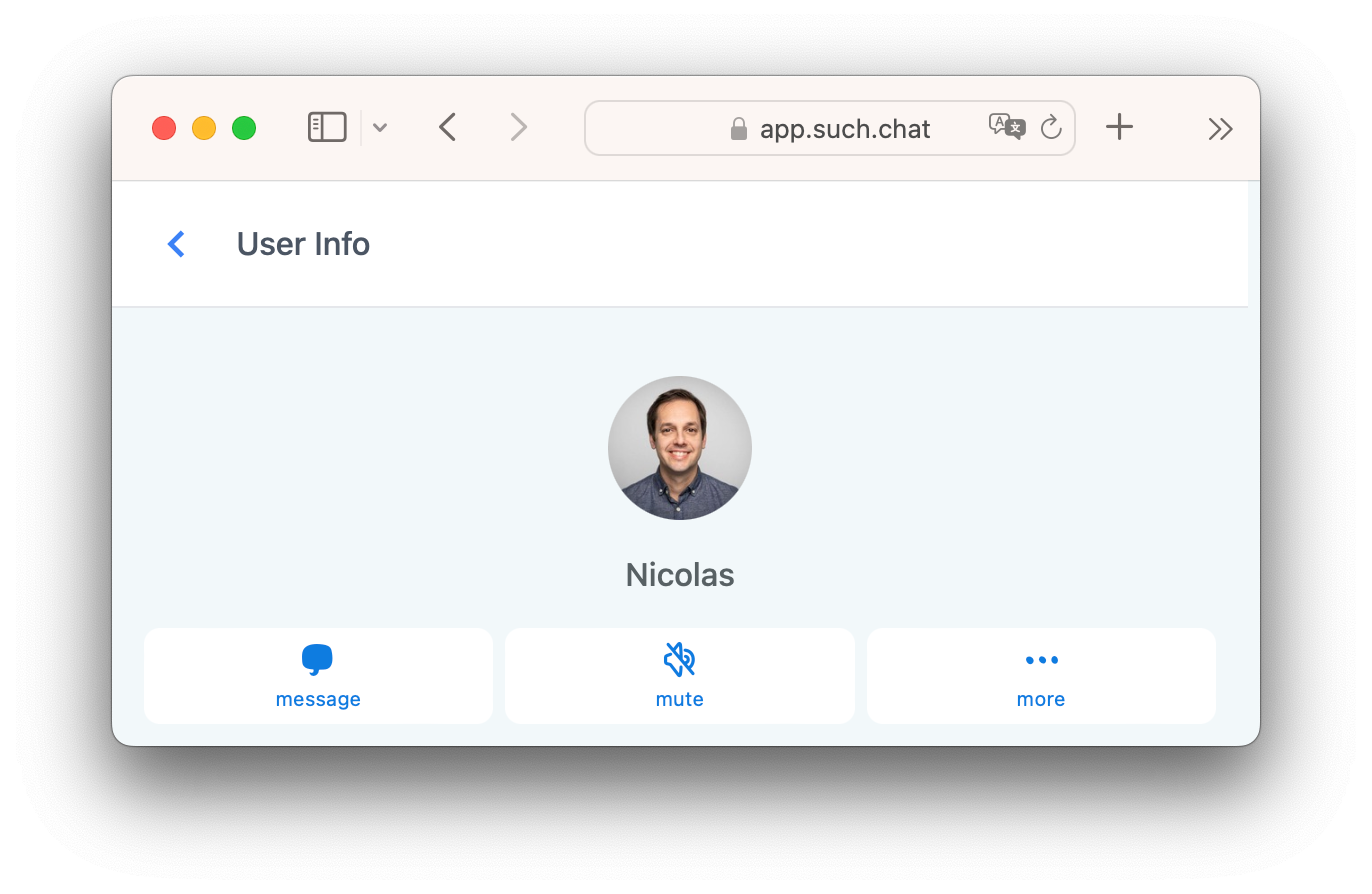
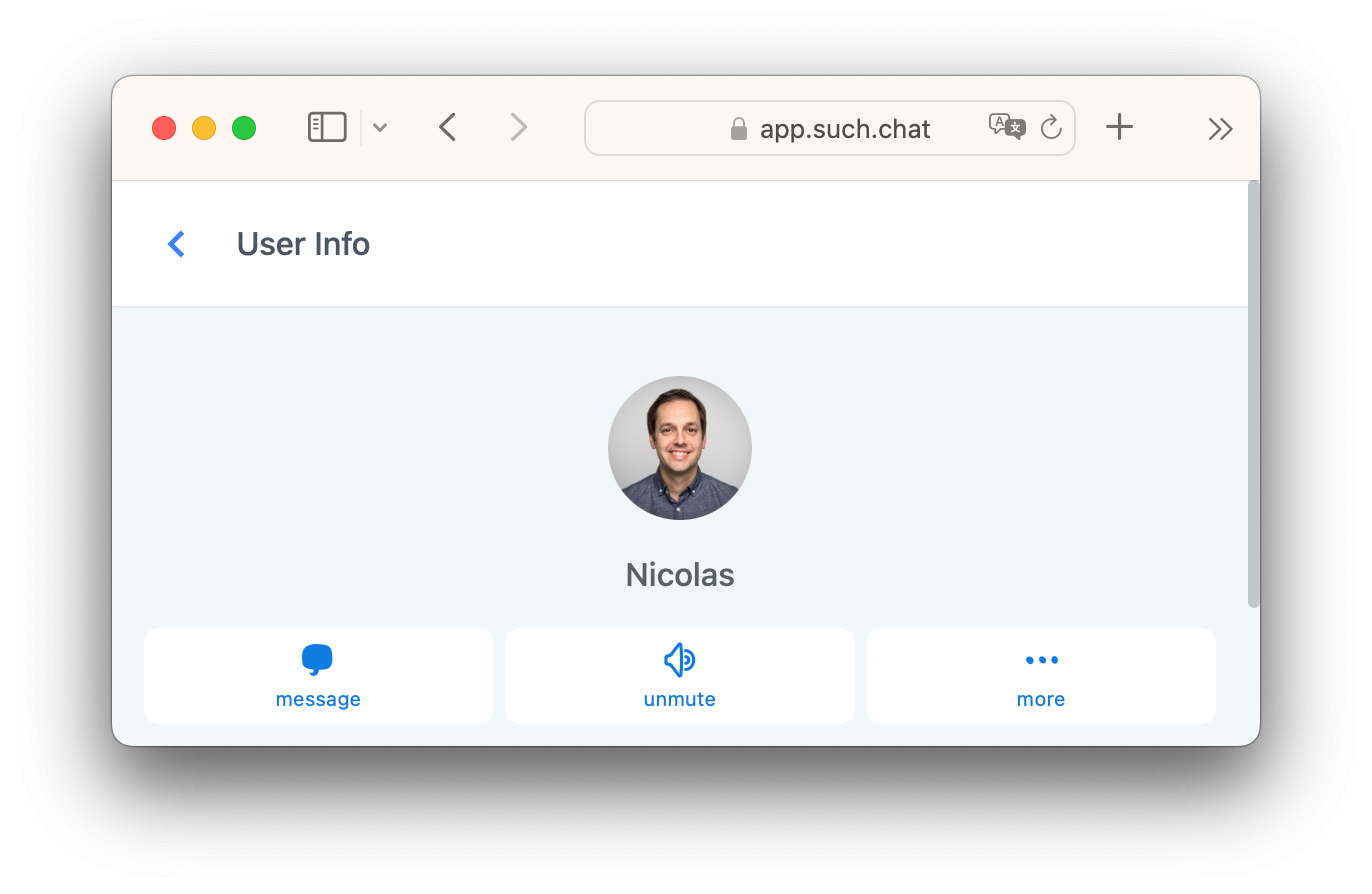
To stop a chat, go to the User Info pane and click the mute button.
Muted chats are moved to the Muted box.
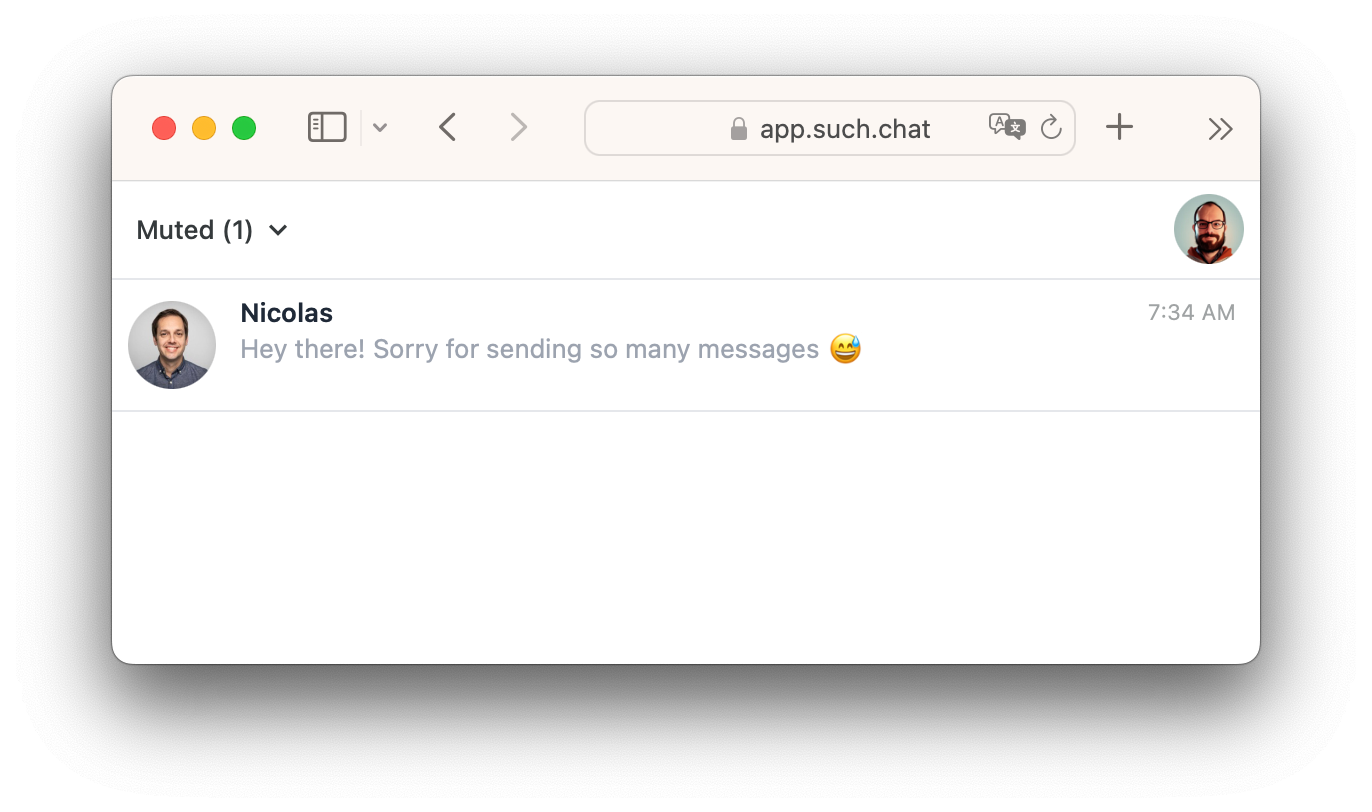
These users’ messages won't send notifications. To start getting alerts for them again, click the unmute button in their User Info pane.
How to block chats
Stop certain users from messaging by blocking them.
Click the more option in User Info and choose Block Chat.
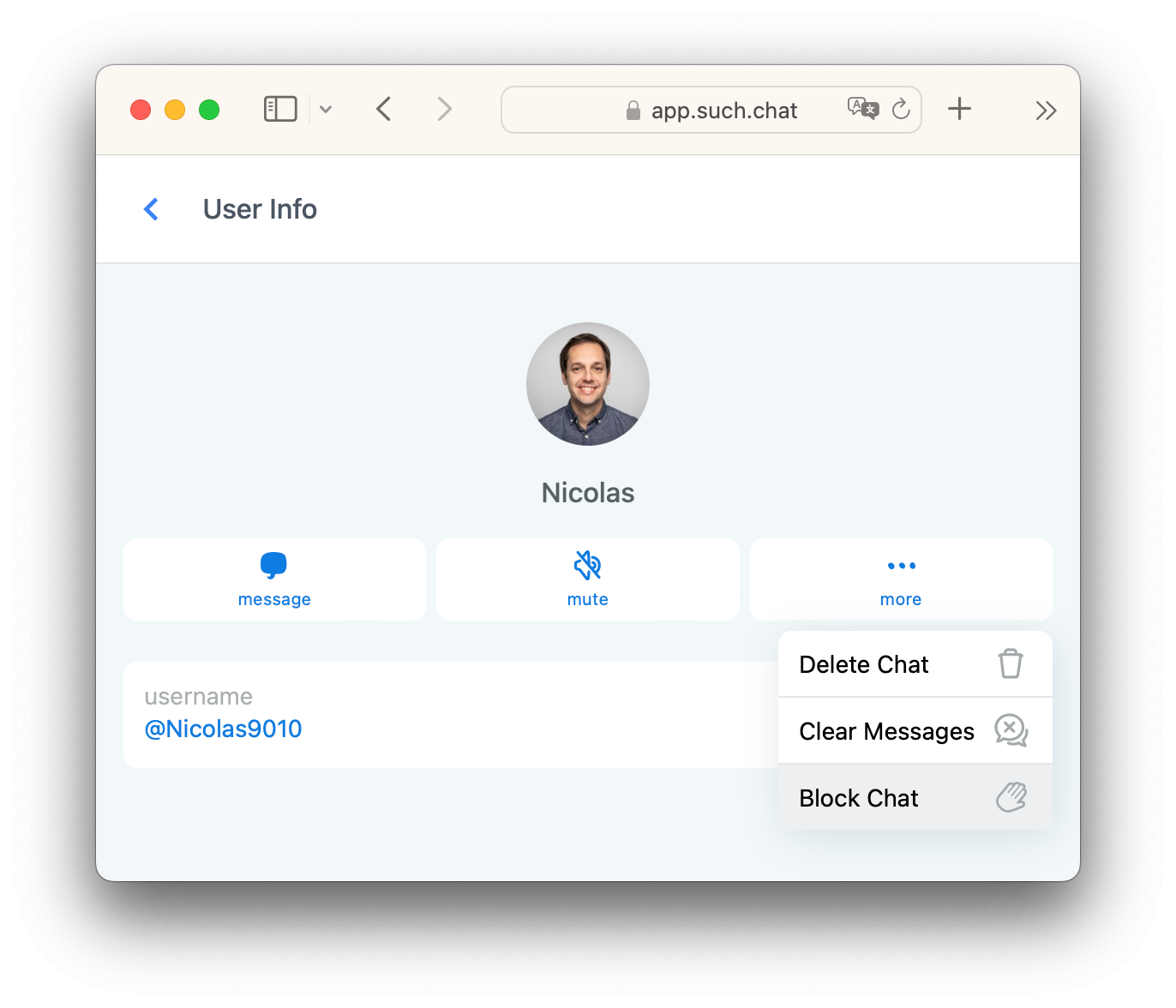
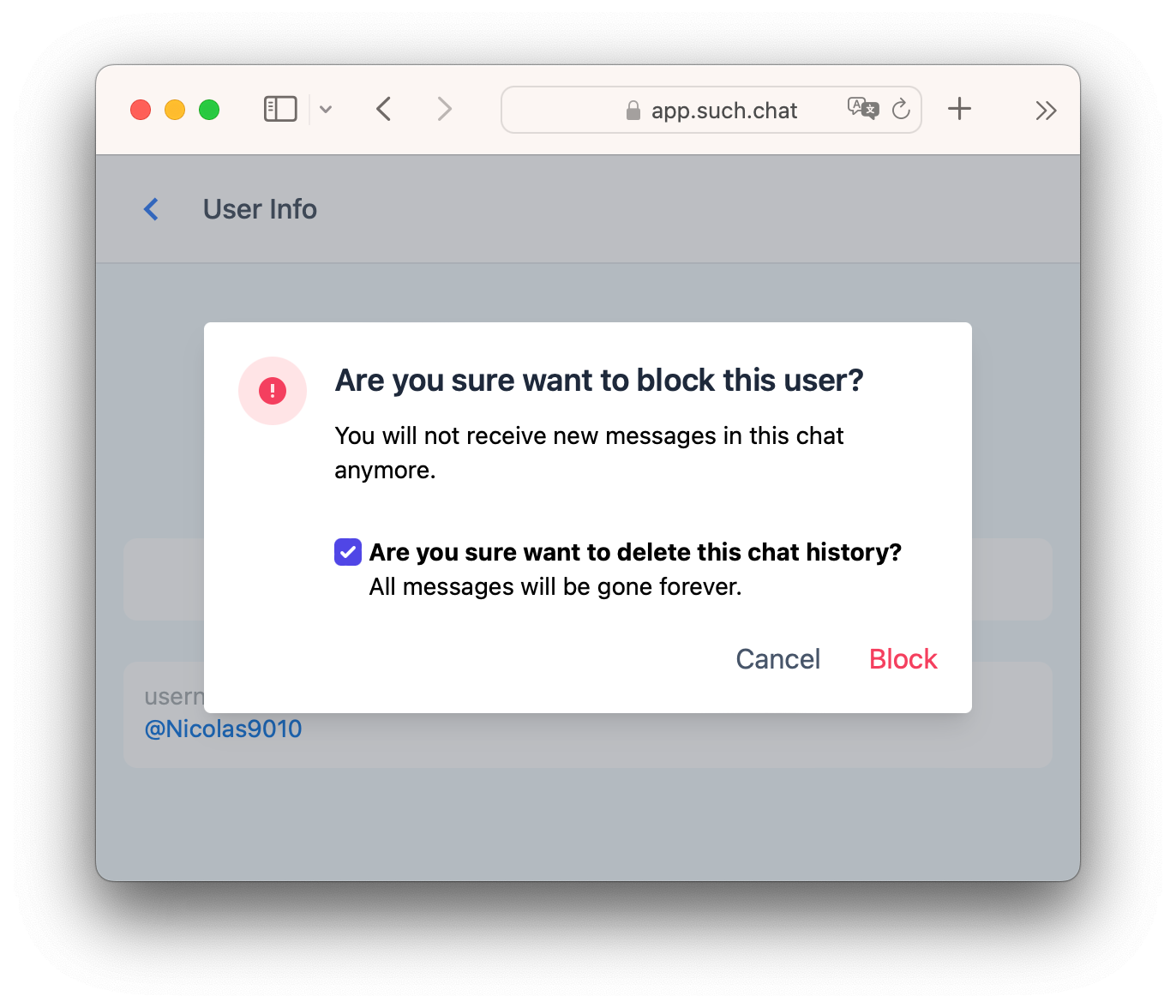
After selecting Block Chat, you can also delete the chat history by leaving Are you sure you want to delete this chat history? checked. Uncheck the box to keep the user’s messages.
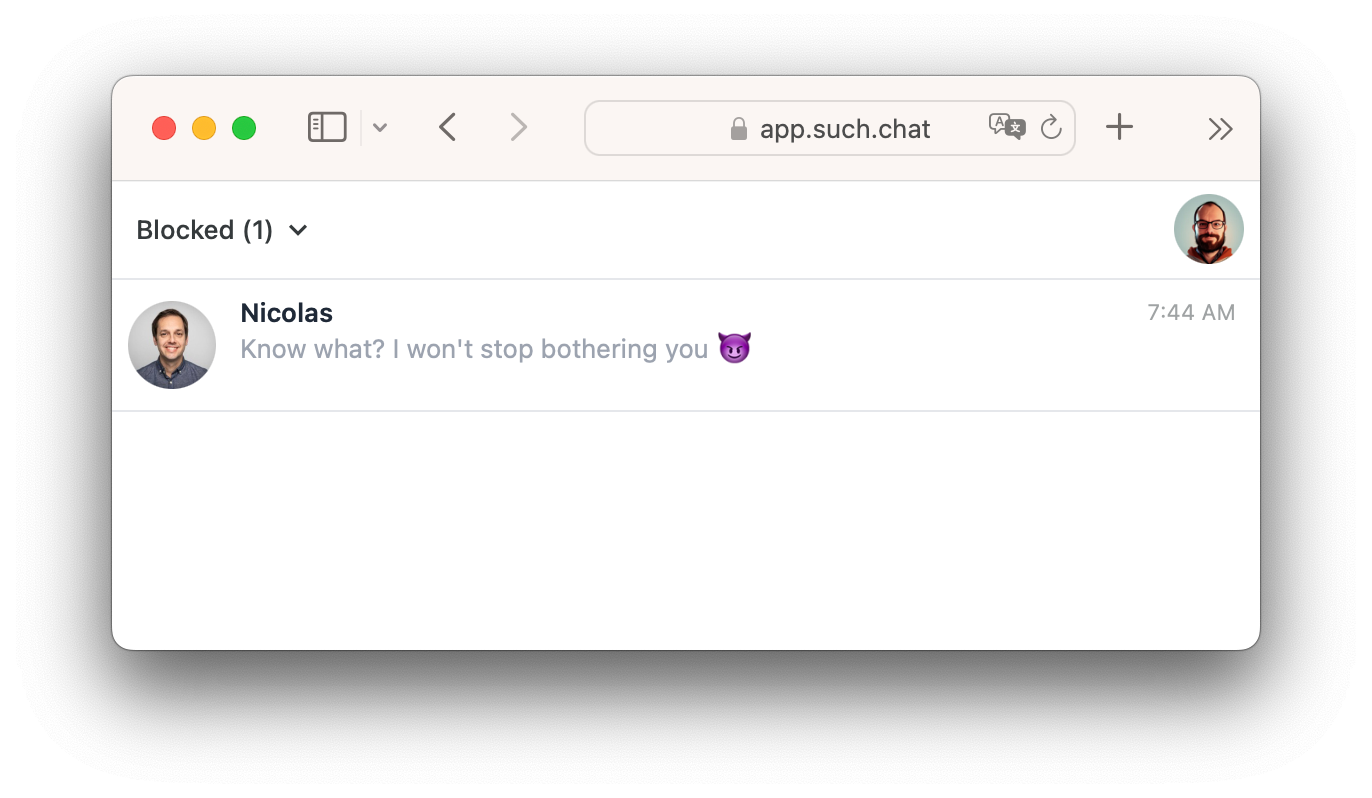
Blocked chats are sent to the Blocked box.
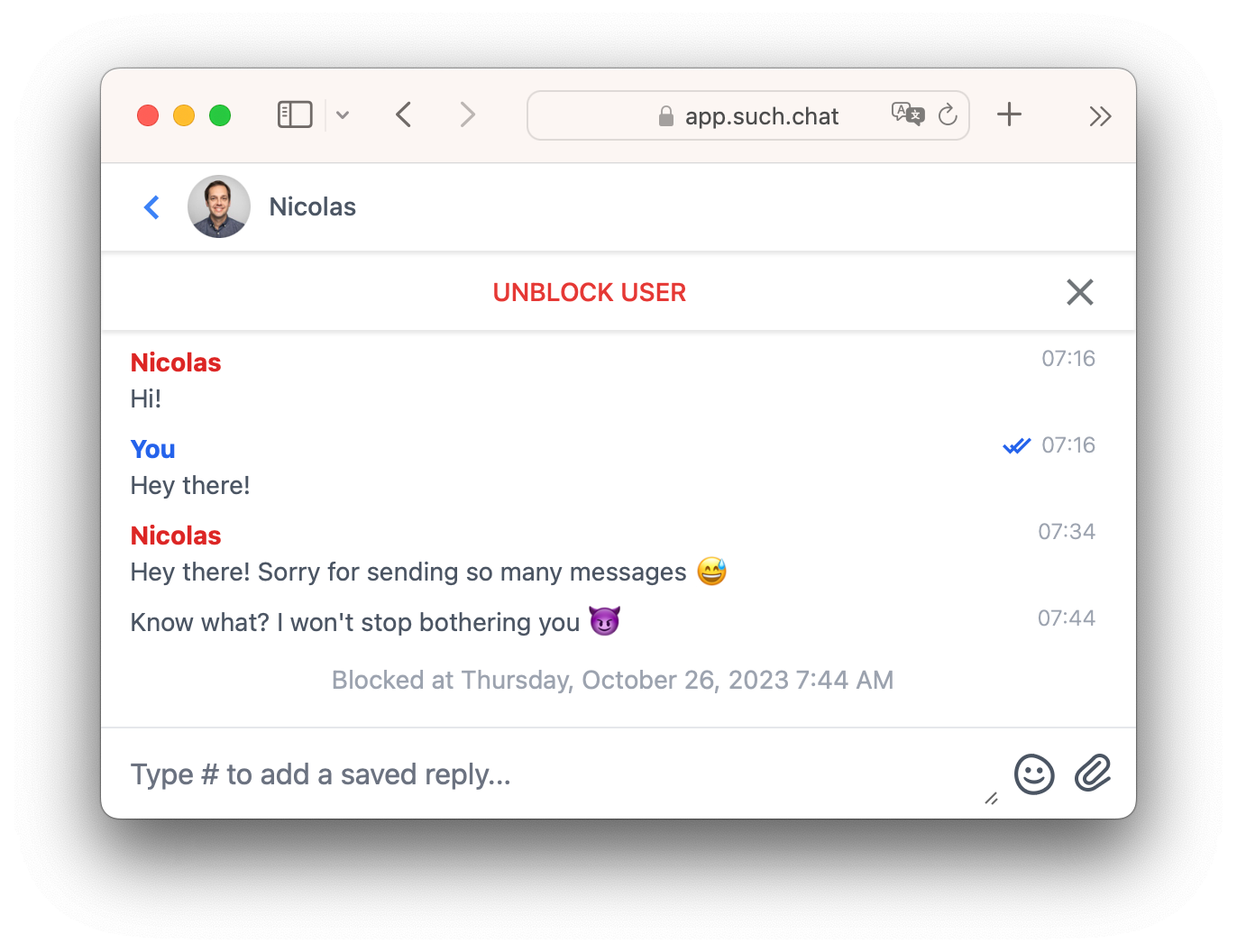
To allow messages from a blocked user, select UNBLOCK USER in the user’s chat.
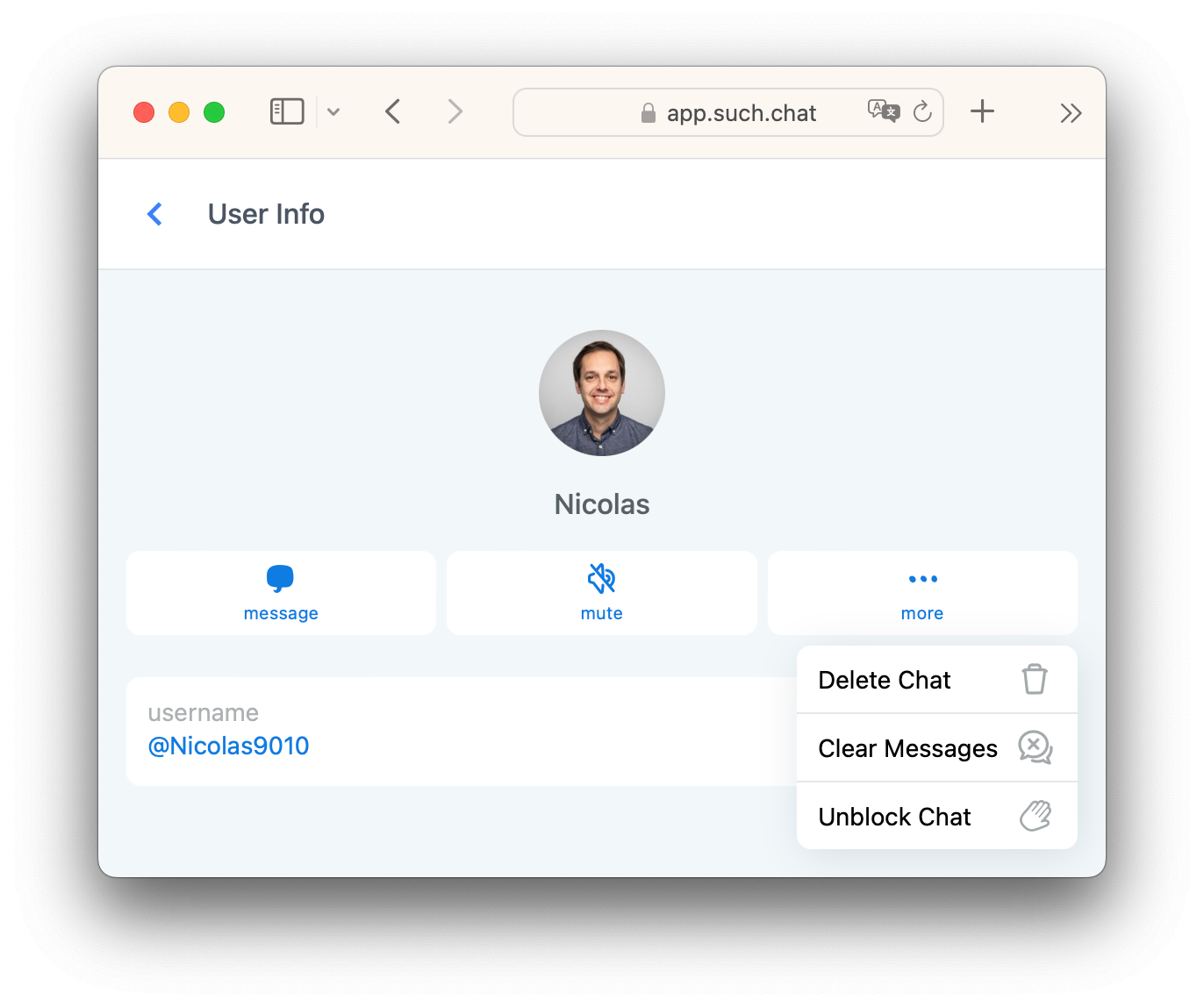
Or go back to their User Info pane and select Unblock Chat.
How to clear chats
Clearing a chat will remove all messages from a user by clearing the chat.
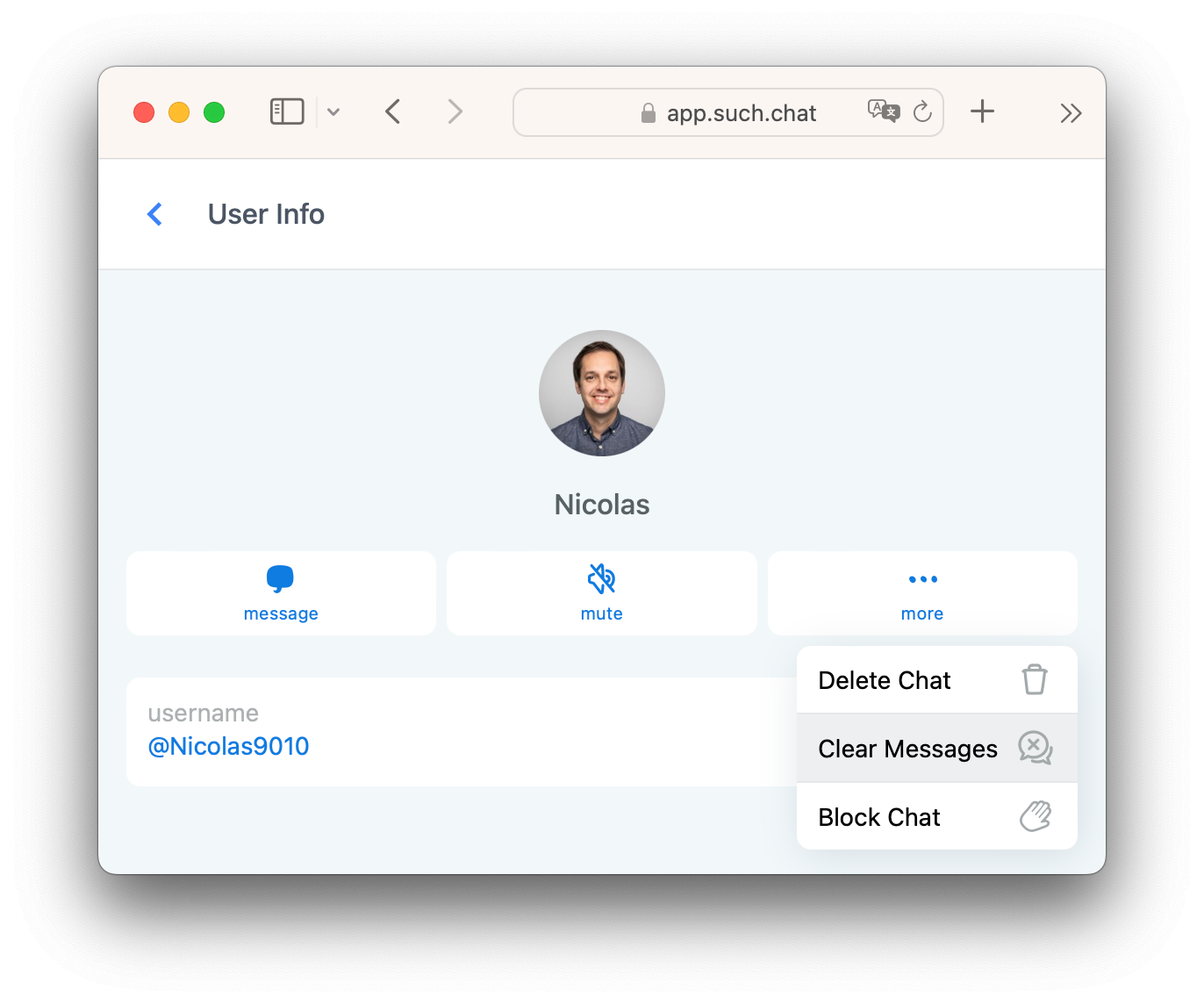
Click more in User Info and pick Clear Messages.
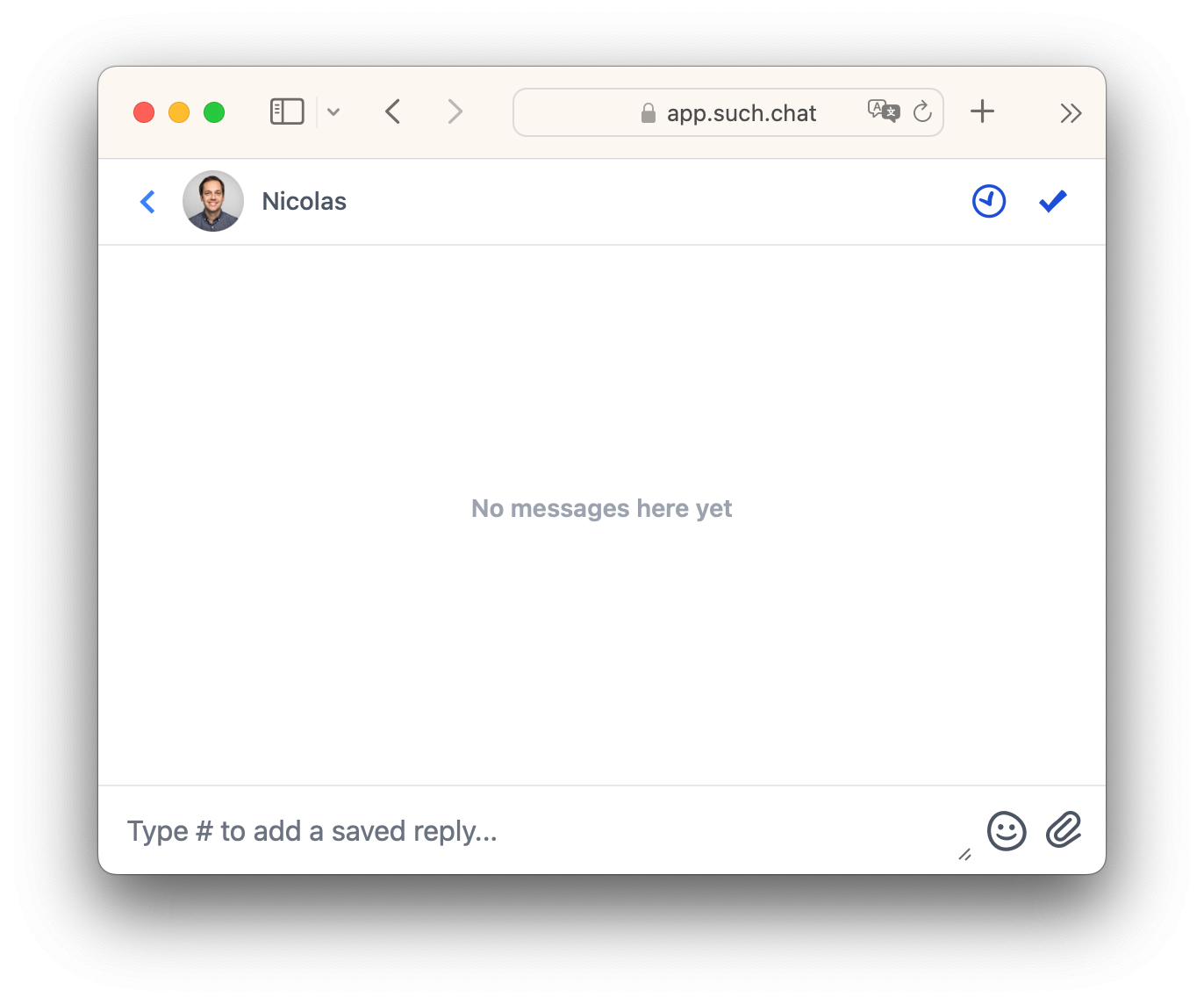
Now, all their messages will be gone.
How to delete chats
Remove whole chats and all their messages by deleting them.
Click more in User Info and pick Delete Chat.
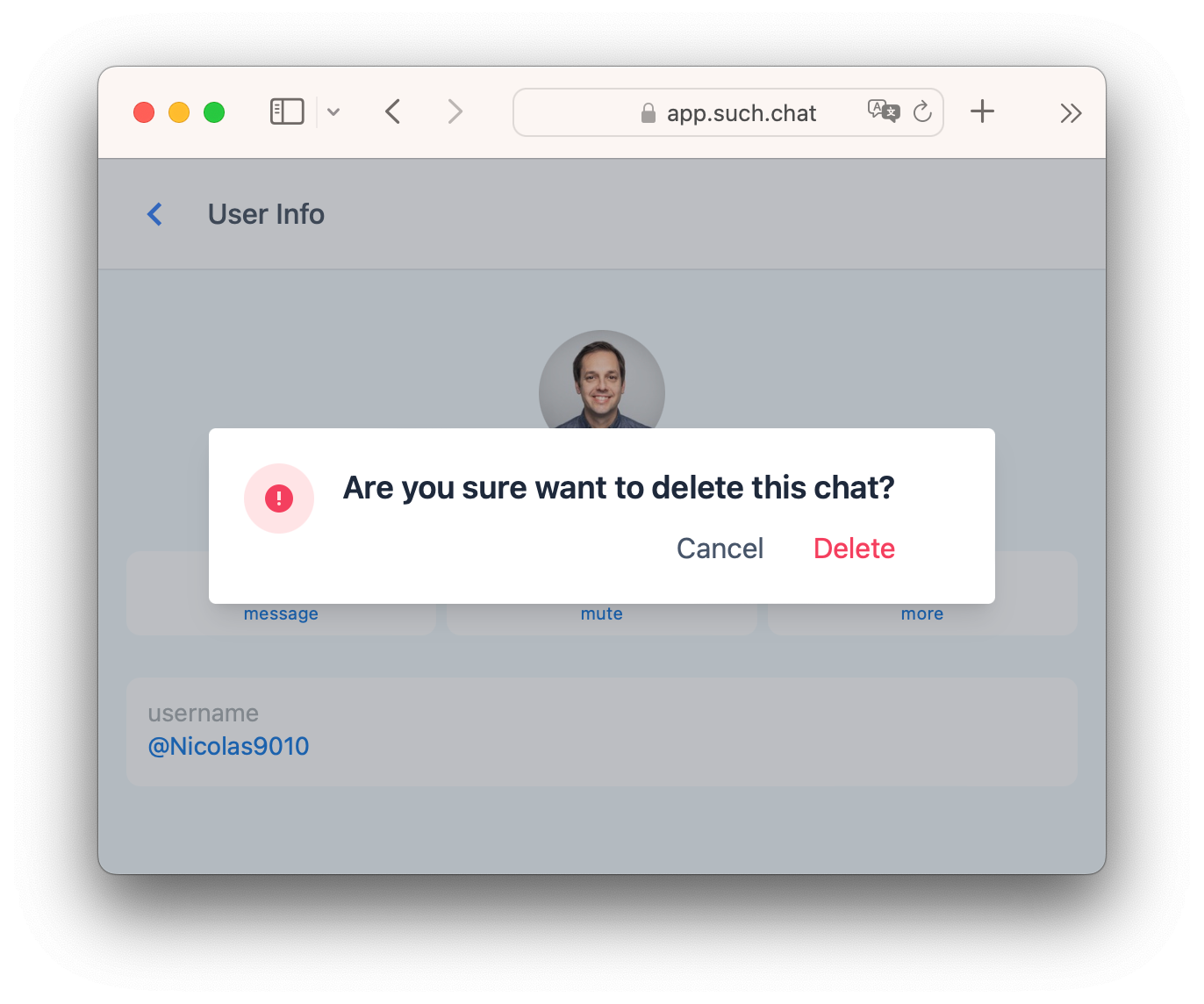
Clearing messages or deleting chats within 48 hours of sending will also delete them from your support bot or support group in Telegram.
NOTE: deleted messages can’t be recovered.
Tips
Handling spammers
If someone keeps sending unwanted messages to your bot, Block + Clear stops them and removes their messages.
Very active bot users
If a user sends lots of messages quickly, Mute them and reply when you can.
Bot owners only
Currently, only bot owners can mute, block, clear, or delete chats in the SUCH web app.
Clearing Telegram chats
Clearing messages after 48 hours of being sent, won't remove them from Telegram.
Check this article to learn how to ban and clear user’s messages in Telegram:
Open, close, and snooze chats
You can close, snooze or reopen chats, and filter by status or bot.
Learn more here: