
Support Bots
Use Open, Snoozed, and Closed chats in Telegram support. Know what each status means, when a chat reopens, and how to keep messages moving.

Damian Ledesma
September 16, 2026
•
6 minutes

Telegram bot messages are clearer with bold text, links, quotes, and code used with purpose.
A Telegram bot message is easier to use when the reader can spot the next action at a glance. Good formatting can show a command, a deadline, or a useful link without making the message feel like a poster.
You do not need to turn every reply into a design project. Use formatting only when it helps a person scan the message and act.
Rich text means text with useful structure: bold words, links, quotes, code style, or hidden spoiler text. Telegram shows those formats inside the chat.
A developer can send formatted bot messages with Telegram's HTML or MarkdownV2 options. That is useful when a custom bot is written in code. A no-code support bot does not need that syntax. In SUCH, select the part of the message you want to format and use the editor toolbar.
Formatting is not the same as a button, a command, or a flow. It only changes how the message is displayed. For fixed actions a reader can type, use a clear command menu. For a first-time explanation, use a welcome message.
Start with plain text. Add one format when it makes the next step clearer.
Monospace: show a command, code, plan name, or short value that must be copied exactly.The simplest useful pattern is a short answer, one bold next action, and one link when a link genuinely saves a step.
SUCH PRO includes text formatting for three places: replies sent from the web app, welcome messages, and quick replies.
app.such.chat and start writing the reply, welcome message, or quick reply.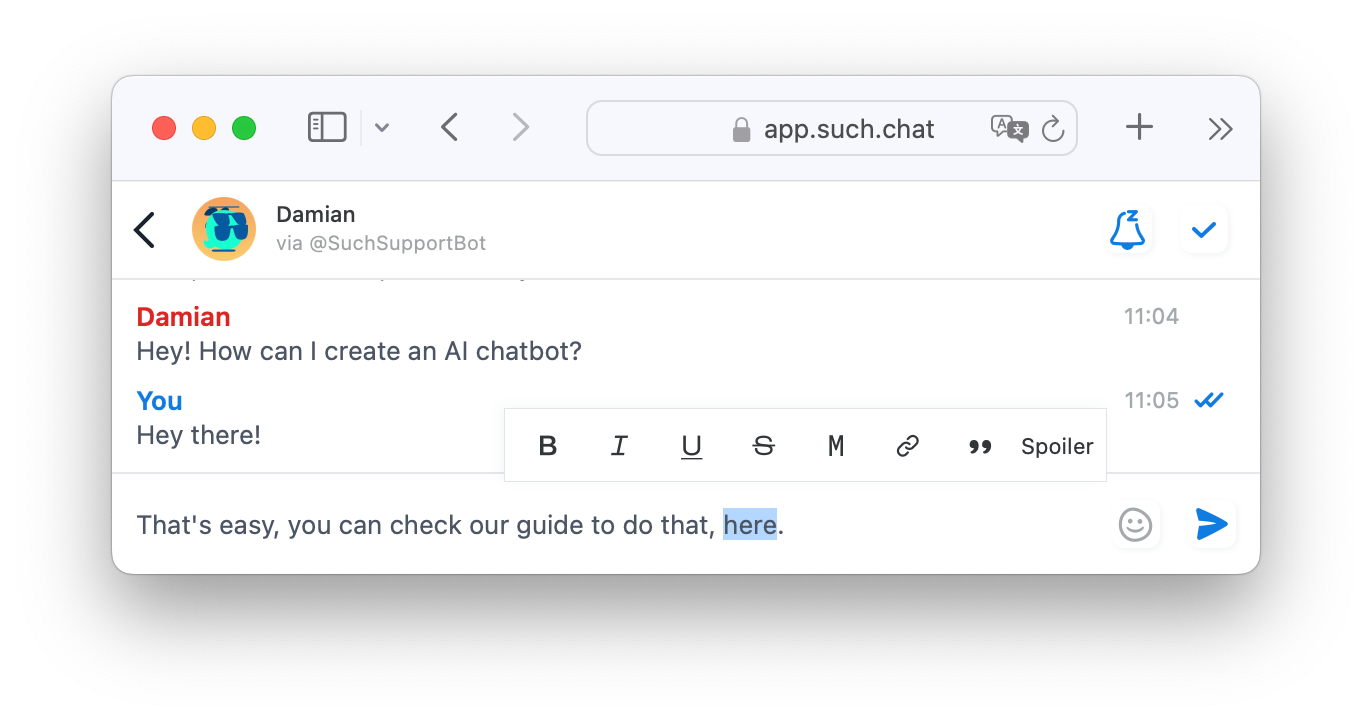
The SUCH formatting toolbar appears when you select part of a reply.
This is useful for a team that repeats the same answer. A quick reply can keep the link, command, and important wording consistent without asking every agent to remember the formatting.
Support messages usually work best in this order:
/human, when a person may need to help.For example:
Your membership is active. Open the course here: View lessons. If the page does not open, send /human and include the email used for the purchase.
The format supports the answer. It should not make a simple answer harder to read.
Do not put a whole paragraph in bold. It removes the point of bold text.
Do not hide key instructions behind a spoiler. A customer should not have to tap around to learn how to get help.
Do not use monospace for ordinary sentences. Reserve it for commands, codes, and names that must stay exact.
Do not replace a useful explanation with a row of links. A link needs a short reason to be there.
When a message must stay visible for a whole group, a pinned welcome message has a different job from a bot reply. Keep the group message broad; use the bot chat for a person's specific question.
Use Telegram's HTML or MarkdownV2 formatting only when you or a developer are building a custom bot with code. Telegram's Bot API reads that formatting when the bot sends the message.
For SUCH replies, welcome messages, and quick replies, use the text-formatting toolbar instead. It is the no-code route and avoids copying syntax into a message editor that does not need it.
Text formatting is a SUCH PRO feature. The bot and ordinary support workflow can still be used without it.
Yes. SUCH PRO text formatting can add links in web-app replies, welcome messages, and quick replies.
No. MarkdownV2 is for bots that send messages through code. In SUCH, select the text and choose a format from the toolbar.
No. Formatting only changes how text looks. Create a command in the bot when you need a typed action with its own response.
Use Open, Snoozed, and Closed chats in Telegram support. Know what each status means, when a chat reopens, and how to keep messages moving.

Set up chatbot-to-human handoff in Telegram. Let customers ask for a person, reply from your team, and return to AI after the chat is closed.