
Keep chats from your different support or feedback bots mixed or separate.
Organize your chats as open, snoozed, or closed in SUCH web app.
Snoozing chats
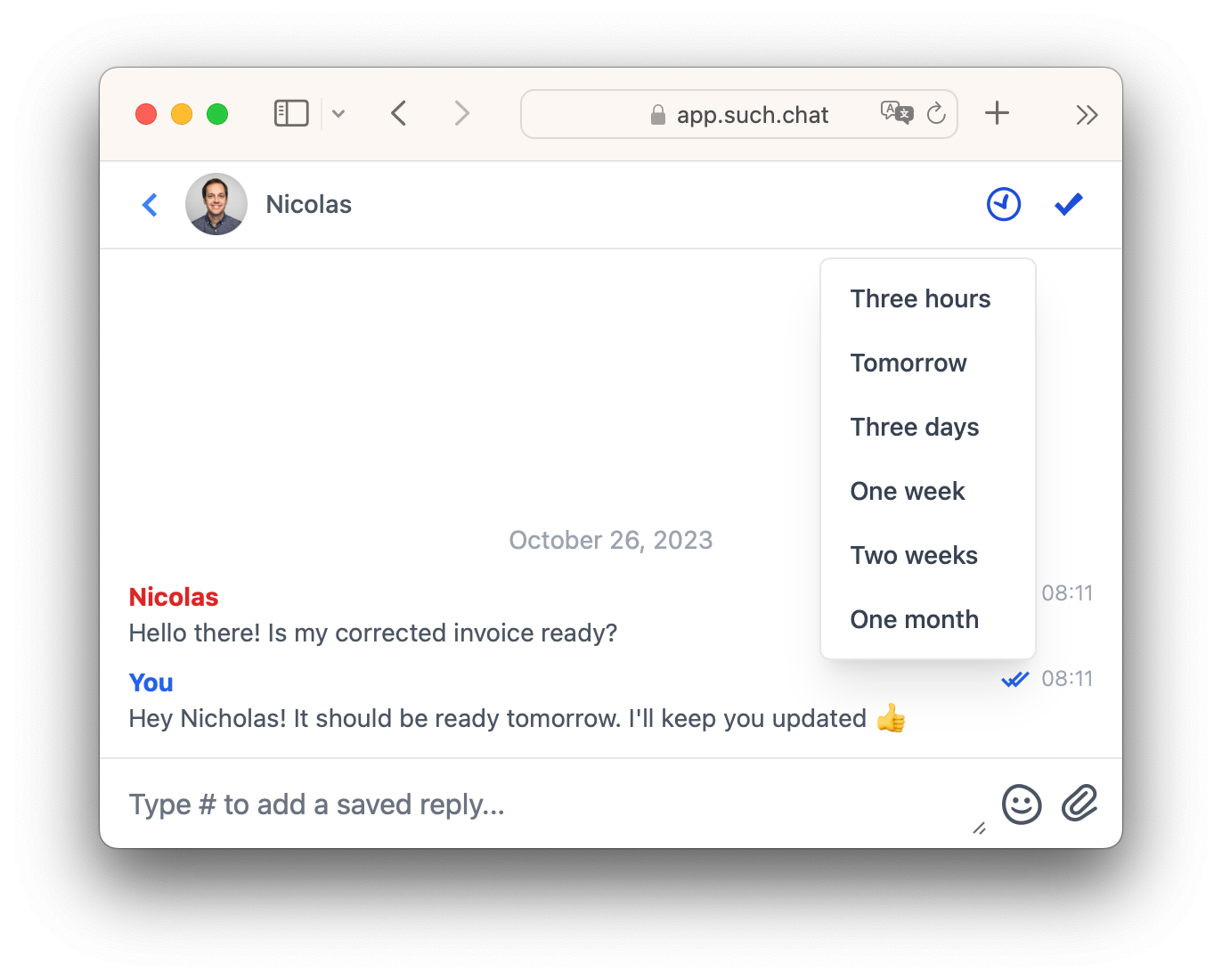
To answer a message later, click or tap the clock icon.
Choose when you want the chat to be Open again.
Closing chats
To finish a chat, click the check icon next to the snooze icon.
Reopening chats
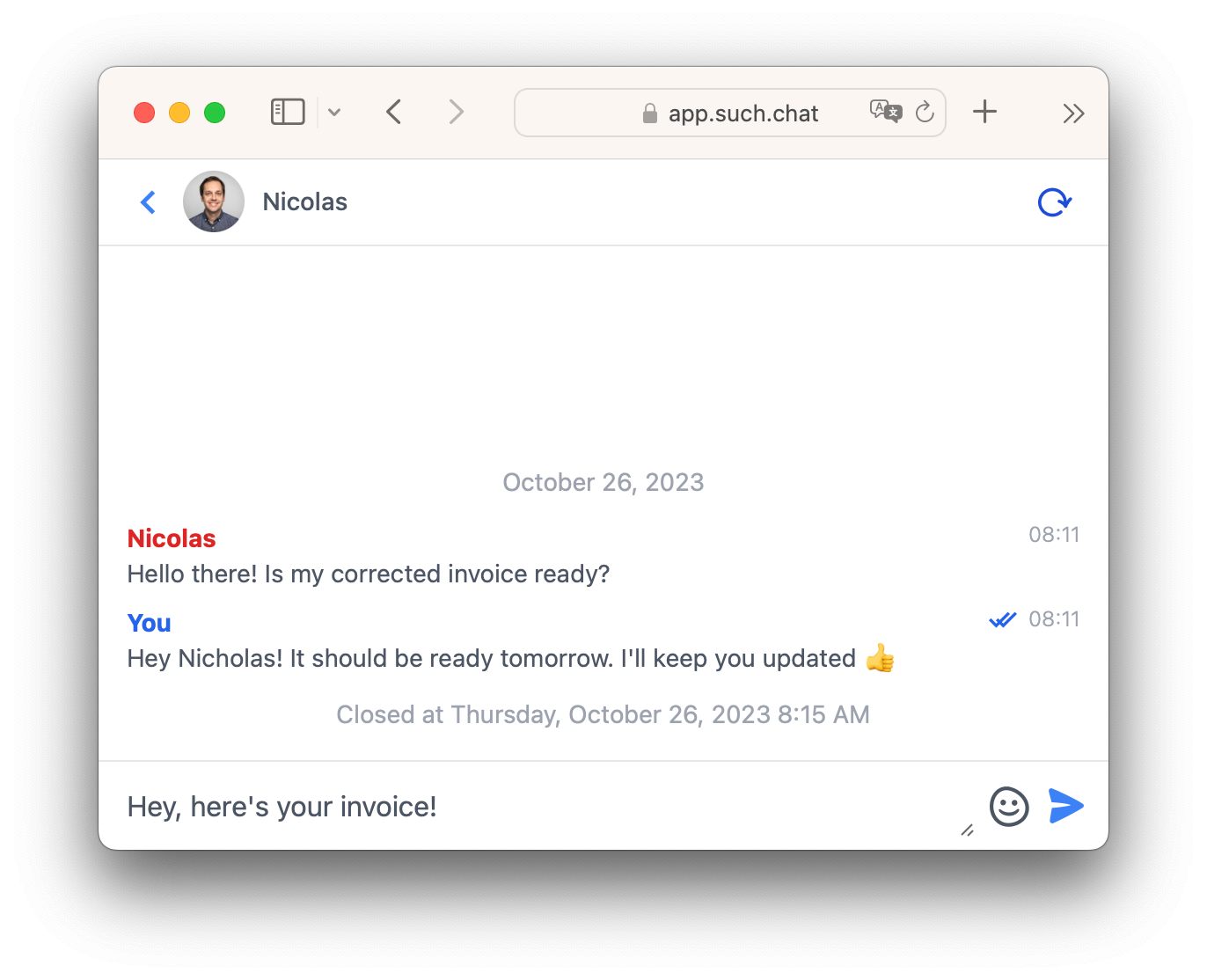
To move a Closed chat back to Open, click or tap the circled arrow at the top right.
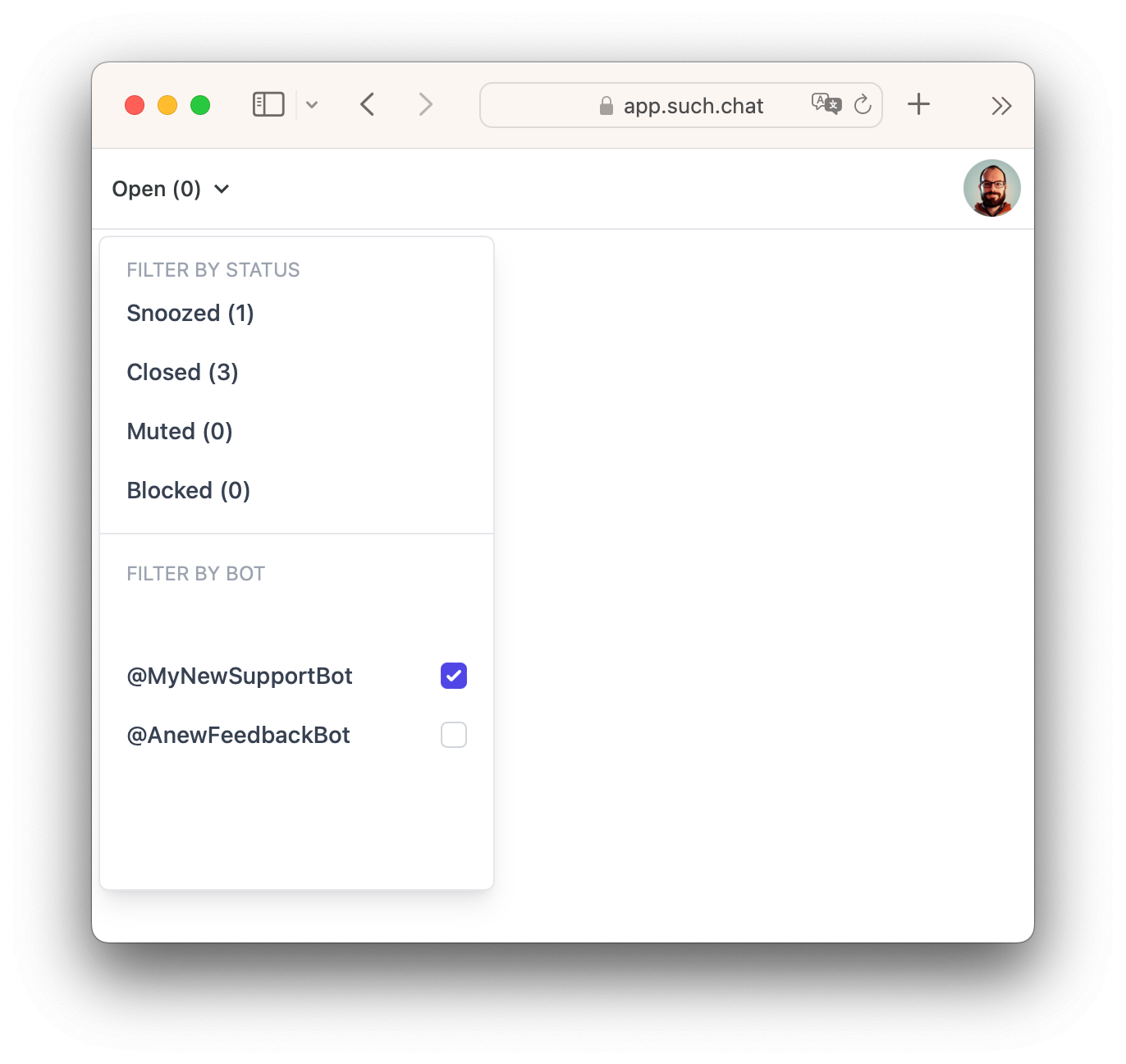
How to switch between opened, closed, snoozed, muted, and blocked
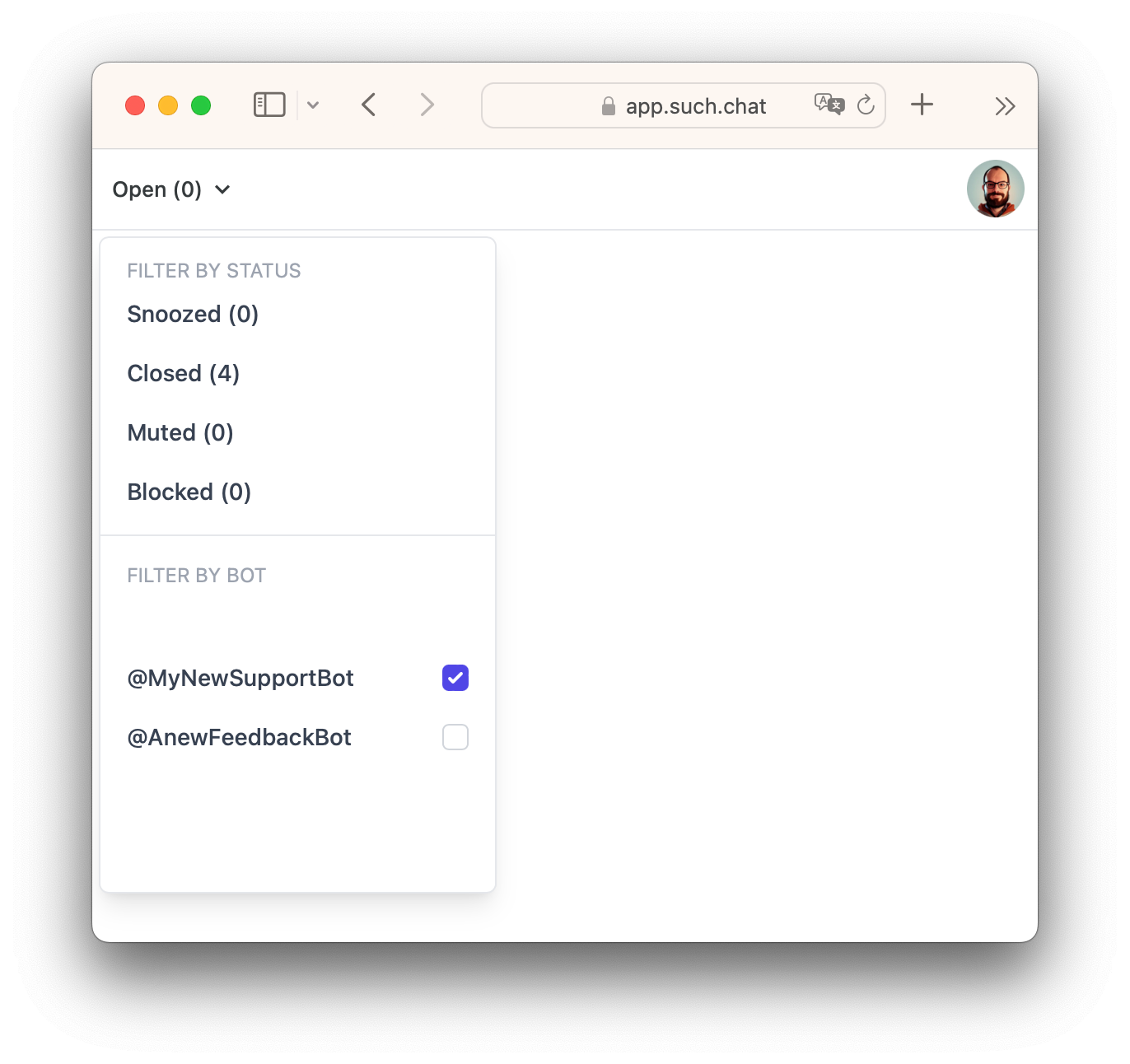
Click or tap Open, Closed, Snoozed, Muted, or Blocked at the top left to filter by status or bot.
Learn how to mute, block, clear, and delete messages here: