
Telegram Guide
Learn how to use the Telegram QR code scanner, log in with QR, and create one with a Telegram QR code generator, easy!

Damian Ledesma
August 29, 2025
•
4 minutes

Telegram not sending code? Fix missing codes, retry lockouts, QR login issues, and banned phone numbers with this practical guide.

Telegram login issues can look the same at first. You enter your number, expect a code, and then something goes wrong. But in practice, a few different problems can look the same.
Sometimes Telegram sends the code to another device instead of SMS. Sometimes the app slows you down after too many retries. Sometimes the number itself needs support review. And in rare cases, the problem is bigger than your account and points to a Telegram-side issue affecting the app more broadly.
The fastest way to fix it is to figure out which problem you actually have.
Most Telegram login problems fall into one of these situations:
Once you know which case you are in, the right fix becomes much easier to spot.
This is the most common complaint, but it does not always mean the same thing.
Telegram expects the number in international format. That means using the + sign, your country code, and the full number exactly as it should be dialed internationally.
If the number format is off, the rest of the login flow can fail before the code ever reaches you.
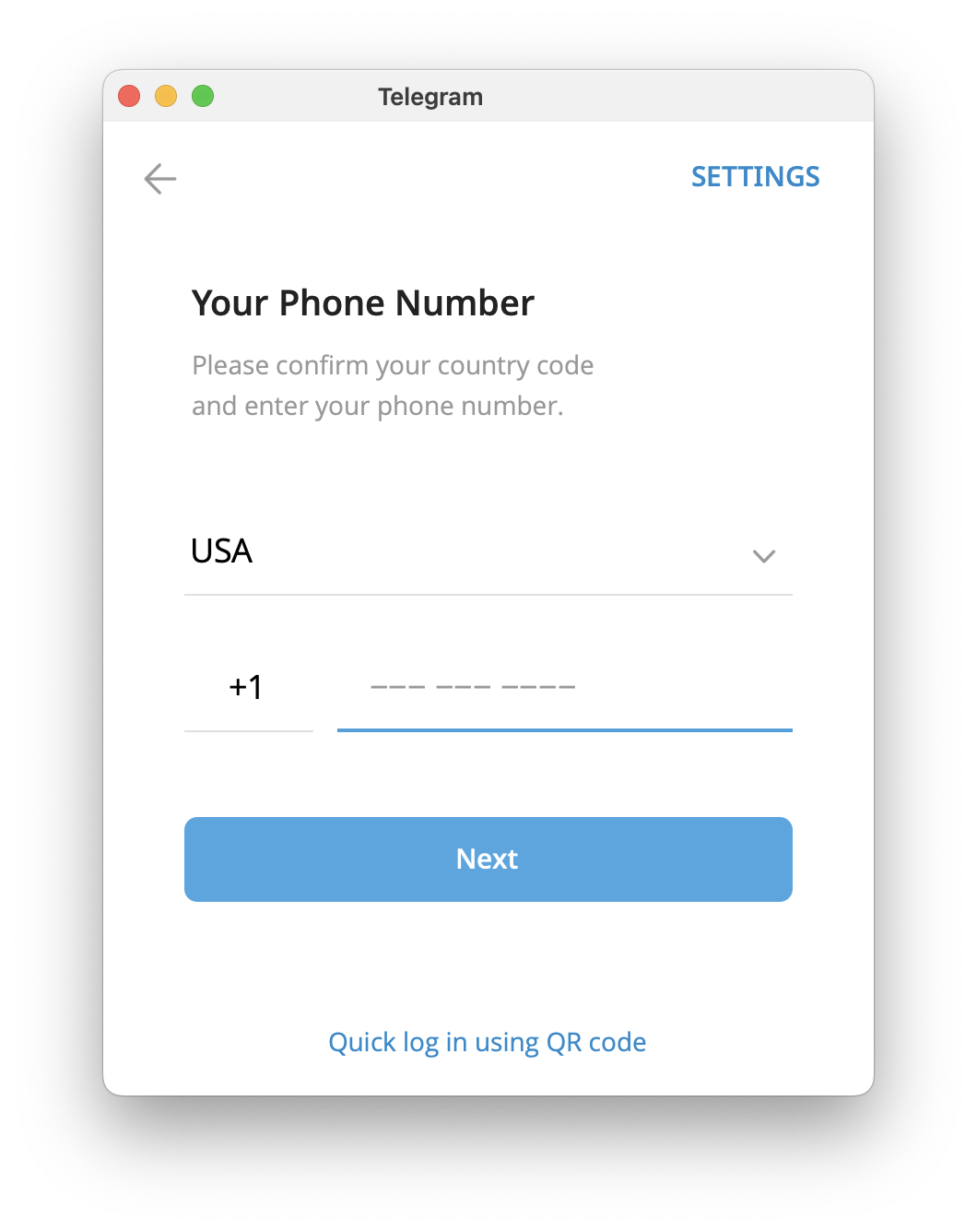
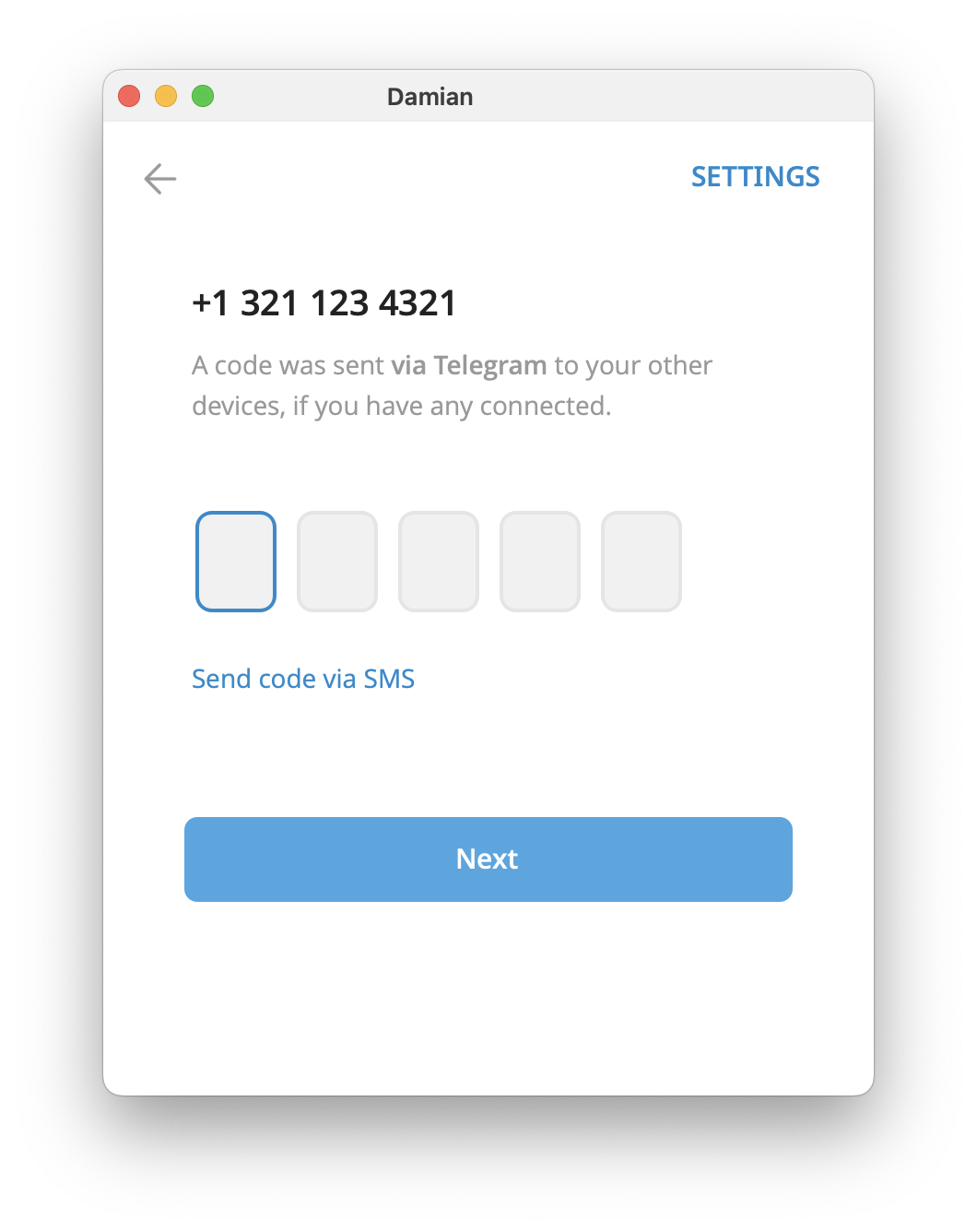
One of the most confusing parts of Telegram login is that the code does not always arrive by SMS. If you are already signed in on another device, Telegram may send the code inside the app instead.
When that happens, the code usually appears in the service chat named Telegram.
So if you still have Telegram open on another phone, tablet, or desktop session, check there before assuming the code was never sent.
This is one of the most important server-side details behind Telegram login issues.
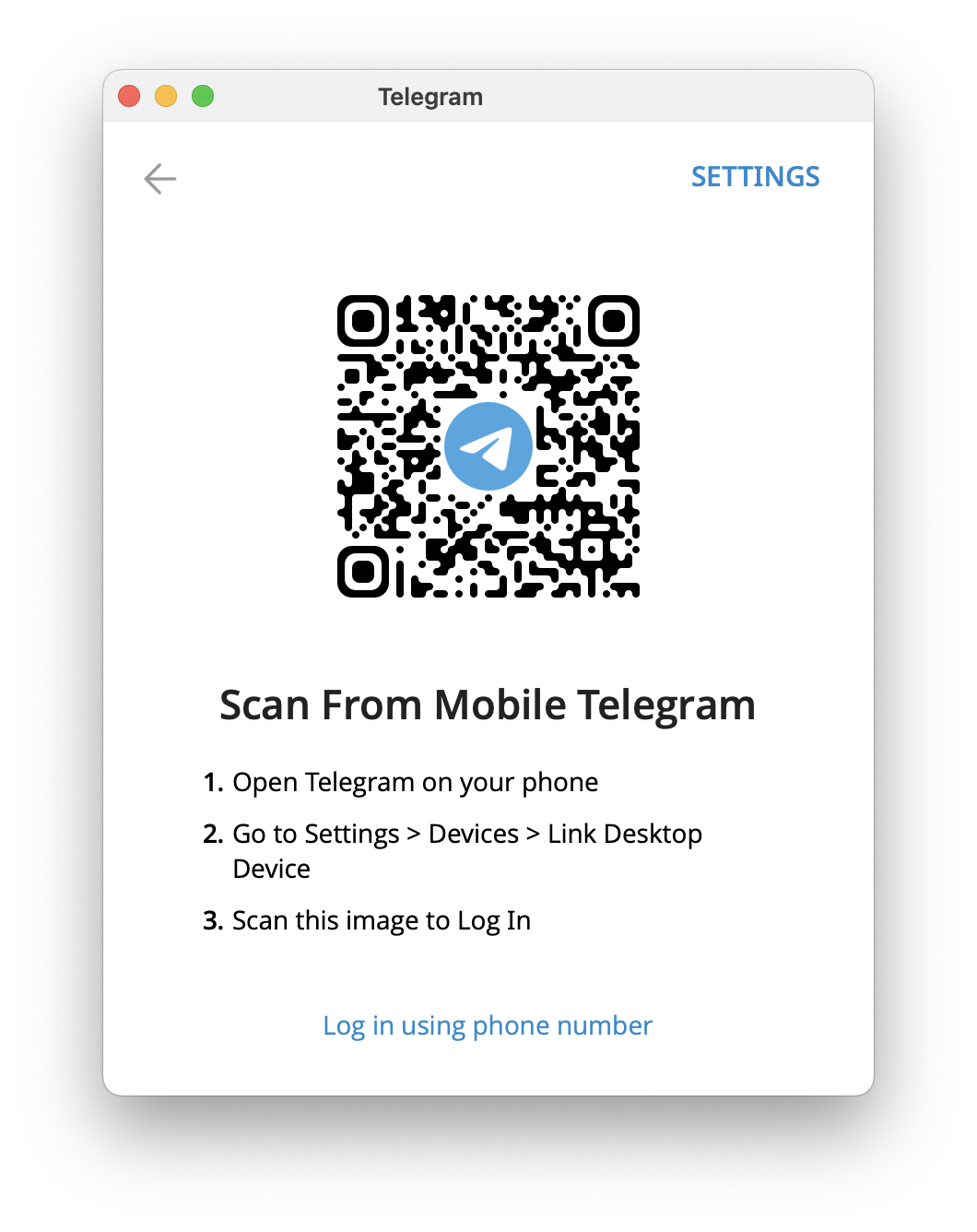
On desktop, macOS, web, and some third-party login flows, Telegram may not treat SMS as the default route anymore. In many cases, it expects you to confirm the login from another active Telegram app or use QR-based login instead.
That means a missing SMS on desktop is not always a broken login flow. Sometimes it is simply how Telegram is handling that sign-in request on the backend.
If you want the full QR login walkthrough, read Telegram QR codes explained: how to scan and use them for login and more.
If the code is not in Telegram and no SMS arrives, check the basics on your side:
If ordinary text messages are failing, Telegram codes will fail too.
Before trying again, simplify the setup:
This will not fix every case, but it helps rule out network noise before you keep troubleshooting.
This error is usually a rate-limit problem, not a mystery bug.
Telegram has likely seen too many login attempts in a short period and is slowing things down. The instinct is to keep retrying, but that usually makes the lockout last longer.
The better move is to pause:
If you treat it like a code-delivery problem and keep forcing retries, you usually make the situation worse.
Yes, but this is where it helps to be specific.
Some rare Telegram login problems are really Telegram-side issues. Outage trackers do show genuine Telegram incidents from time to time. But those incidents usually affect more than just SMS delivery.
If Telegram is having a broader service problem, you are more likely to notice things like:
If the only thing failing is one login code request, the issue is more likely to be account routing, retry limits, device state, or carrier delivery rather than a full Telegram outage.
If the app seems broken everywhere, checking a third-party outage tracker can help confirm whether other users are seeing the same thing.
This is different from a missing code or a temporary retry limit.
If Telegram tells you the number is banned, repeated login attempts will not fix it. At that point, the right move is support.
Use the official Telegram support form and include:
If you need more detail on where to escalate and what to include, the SUCH guide on how to contact Telegram support is the natural next step.
This situation depends on whether you are still logged in anywhere.
If you still have access to Telegram on at least one device, change the number from inside the account before logging out. That is the cleanest path.
If you are logged out everywhere and the old number can no longer receive codes, recovery becomes much harder. In that case, support is usually your only realistic option.
If you are starting over with a fresh number instead of recovering the old account, see how to create a Telegram account step by step.
After restoring access, spend a minute making sure the same problem does not happen again.
If you want to remove old sessions after you are back in, see how to log out of Telegram.
If the issue was not just login friction but a possible account compromise, it is worth reading what to do if your Telegram got hacked.
These are the habits that usually create more friction:
Telegram service chat on another active deviceThe smoother approach is to slow down, identify the exact problem, and follow the right fix path once.
Usually because of one of four reasons: the number format is wrong, the code was sent to the Telegram chat on another logged-in device, your carrier is not delivering the message, or Telegram is temporarily slowing new attempts after repeated retries.
If you already have an active Telegram session somewhere else, the code may appear in the in-app service chat named Telegram.
Desktop and web login flows do not always work like mobile login. In some cases, Telegram expects you to confirm from another active app session or use a QR code rather than receive a fresh SMS.
It varies. The safest approach is to stop retrying, wait, and then come back with one clean login attempt instead of repeatedly requesting new codes.
Use the official support form, include the exact error, and provide the number in international format with enough context for Telegram to review it properly.
Most Telegram login issues are fixable, but only if you diagnose the right problem first. A missing SMS, a rate-limit warning, a banned number, and a wider Telegram-side issue are not the same thing, even if they all start with the same frustration: you cannot get back into your account.
Once you separate those paths, the next step becomes much clearer and you are far less likely to make the login flow worse.

Learn how to use the Telegram QR code scanner, log in with QR, and create one with a Telegram QR code generator, easy!

Learn how to contact Telegram support in 2025 via in-app options, email, or social media.