
If you connect your bot to a group that has topics, you can choose which topic you want to get all notifications from.
Here’s how you do it:
First, connect your bot to a group with topics. Do this by sending /team to SUCH.
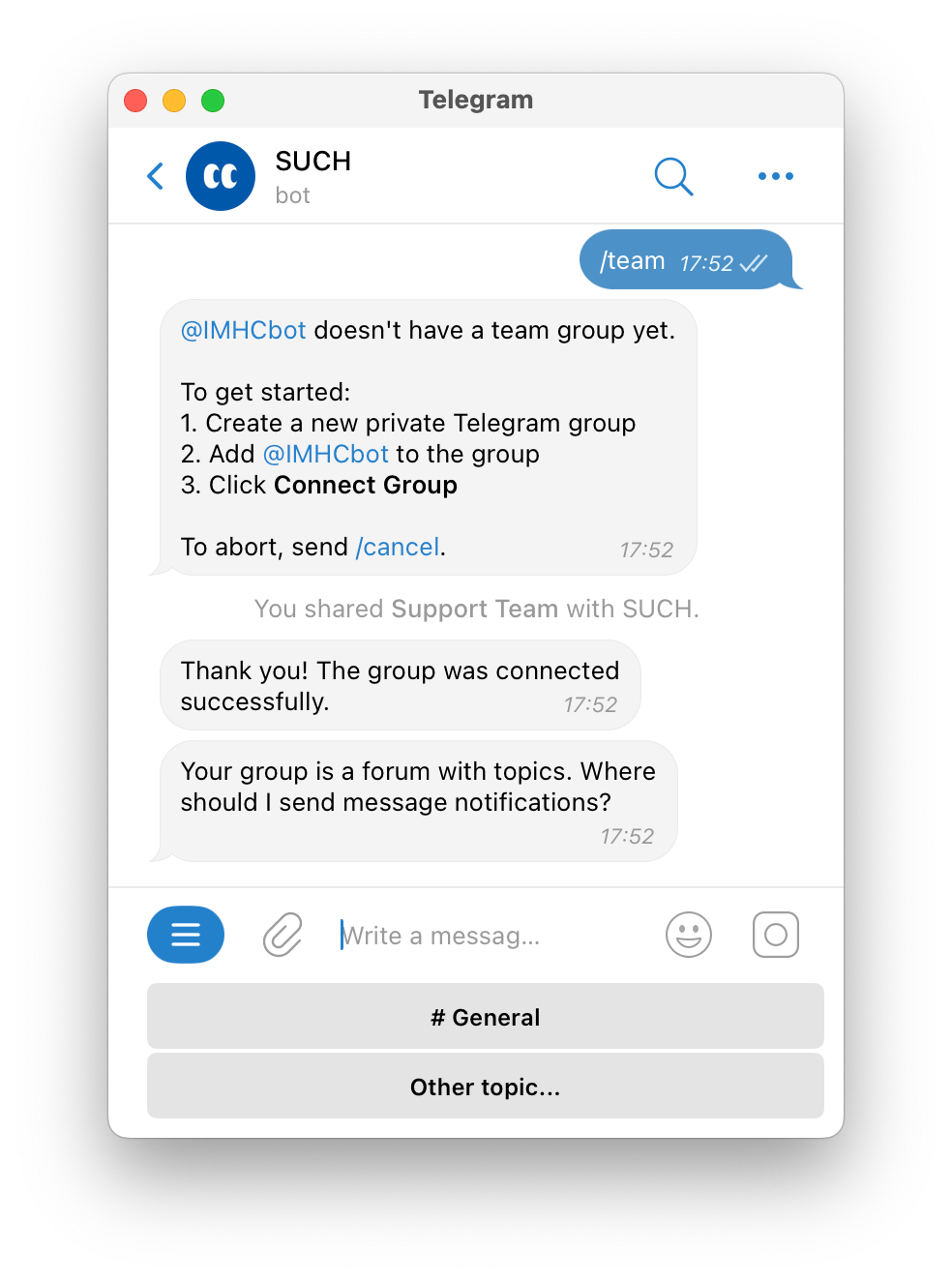
The bot will ask you where you want to get message notifications. Click the # General button if you want notifications in the main topic.
If you want to receive message notifications in a different topic, click Other topic.... The bot will ask you for the topic link.
Getting the topic link will be different for each version of the Telegram app.
For Android, iOS, and desktop versions:
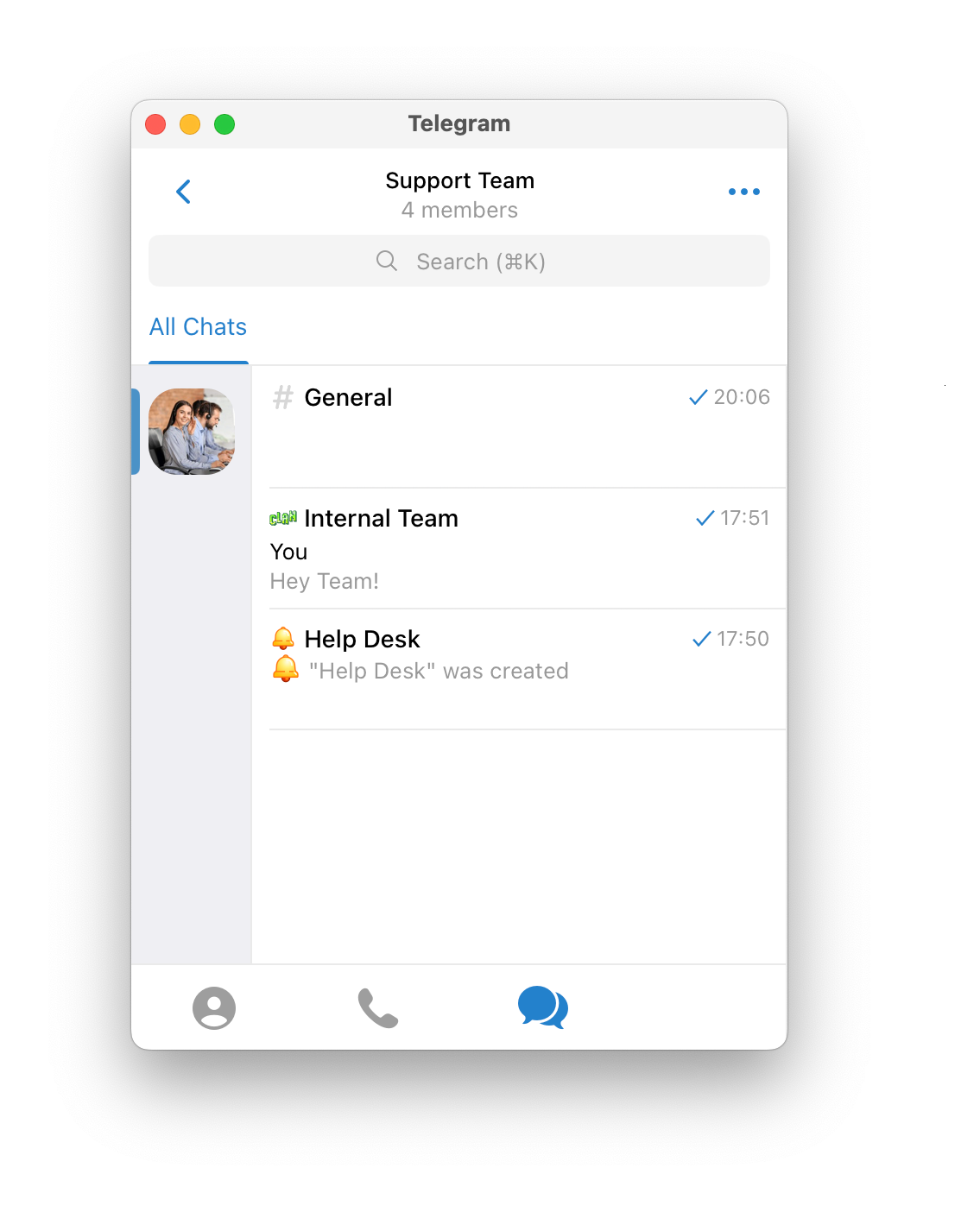
- Select the topic in the group:
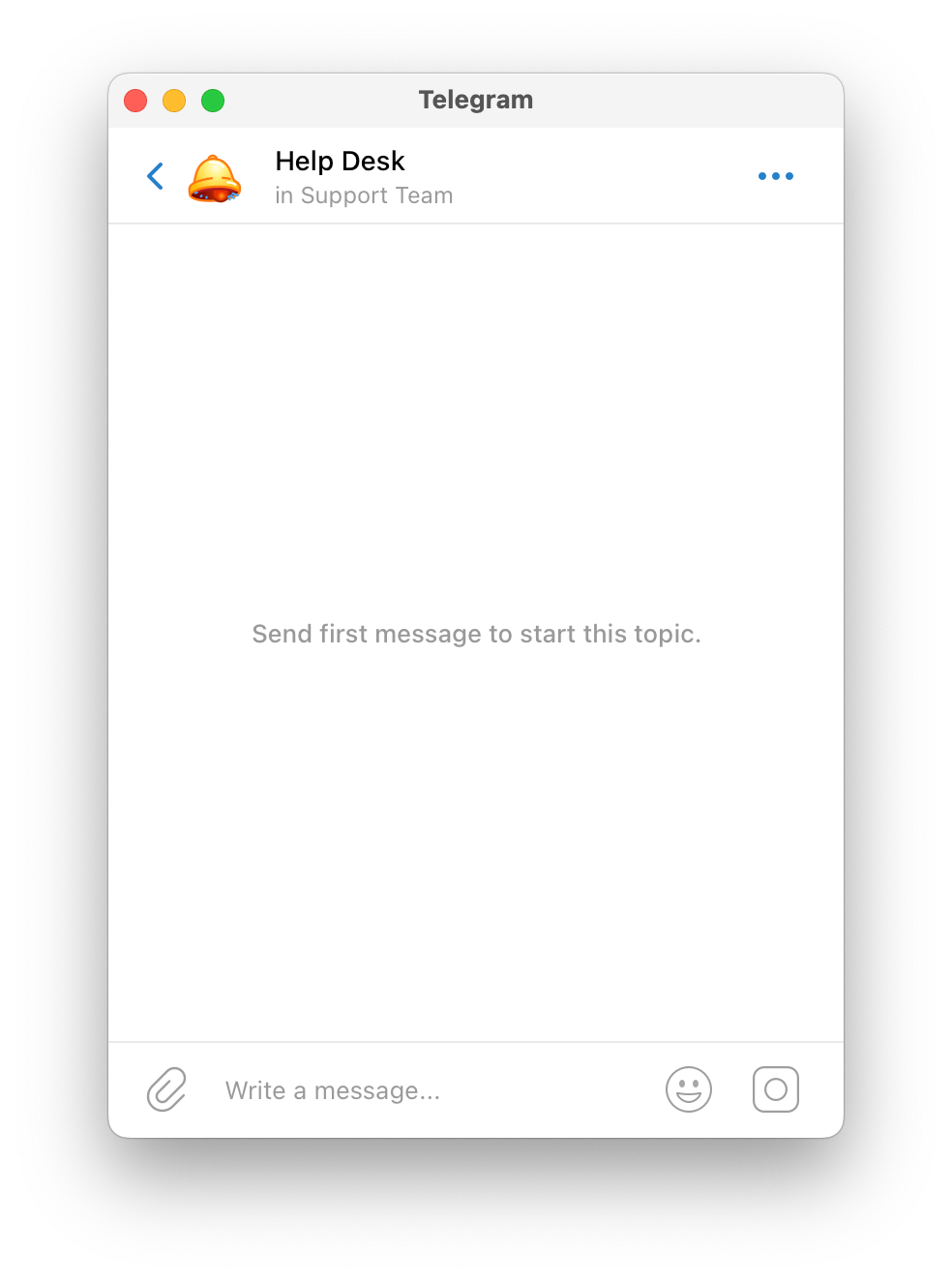
- Tap or click the topic’s name at the top:
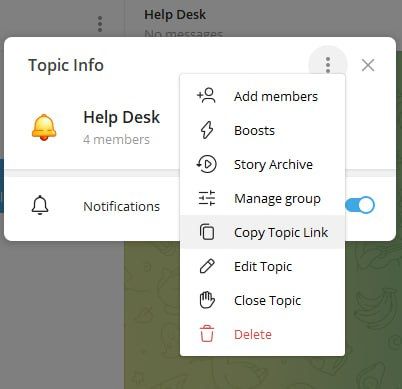
- For desktop versions, click the menu toggle button of your Topic Info pane and select Copy Topic Link:
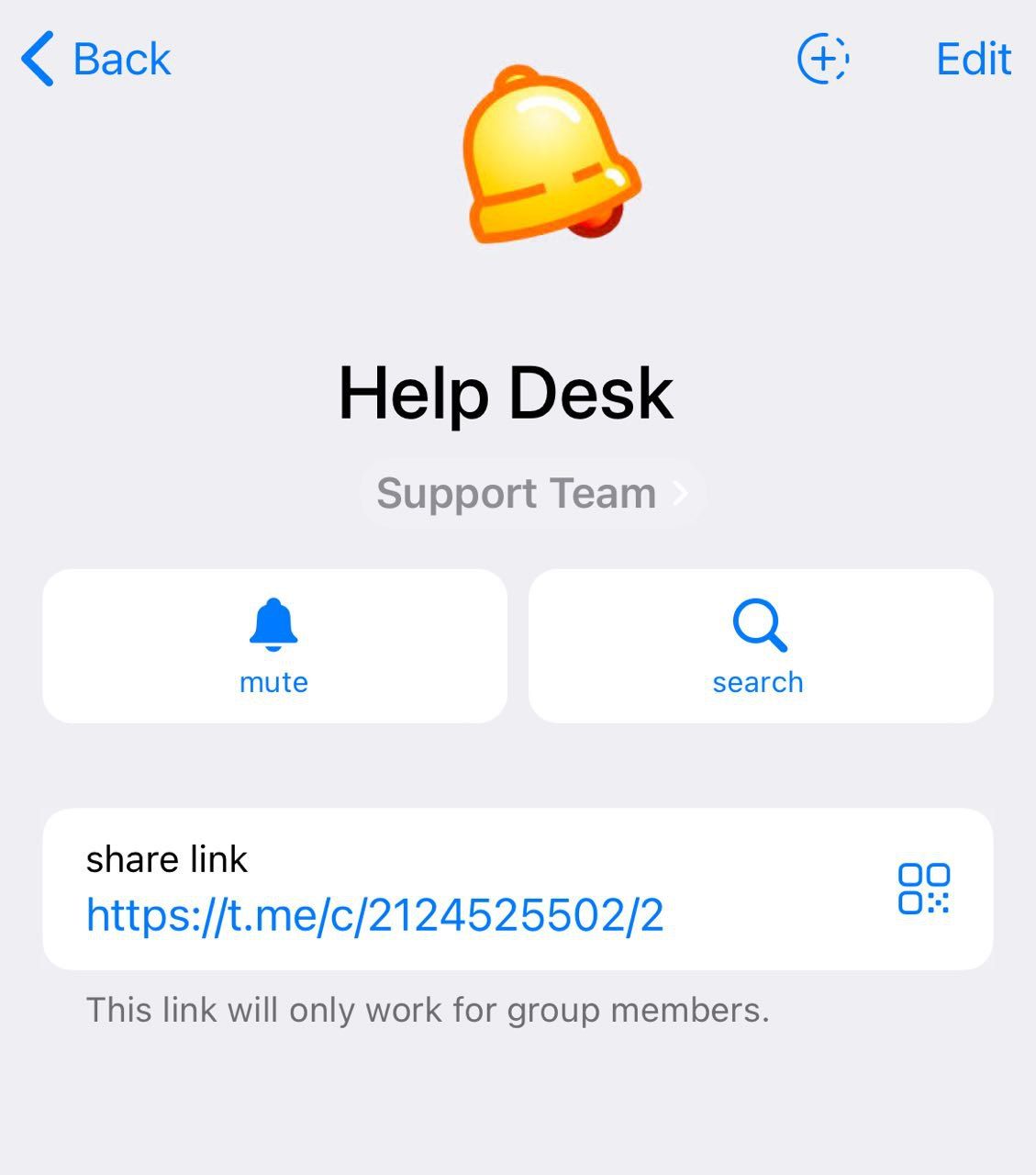
In macOS only,
- Access the topic Info pane by clicking the topic name
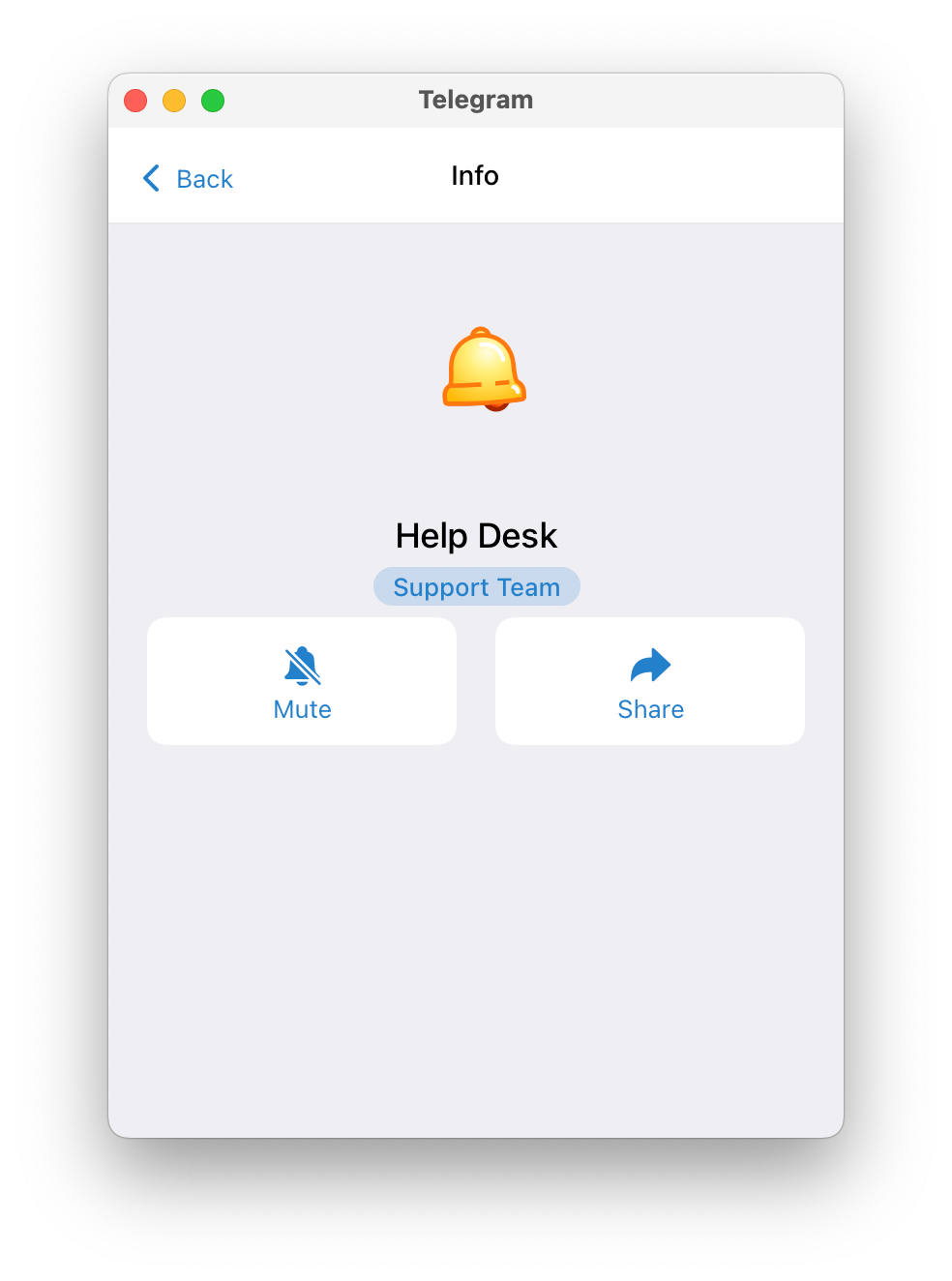
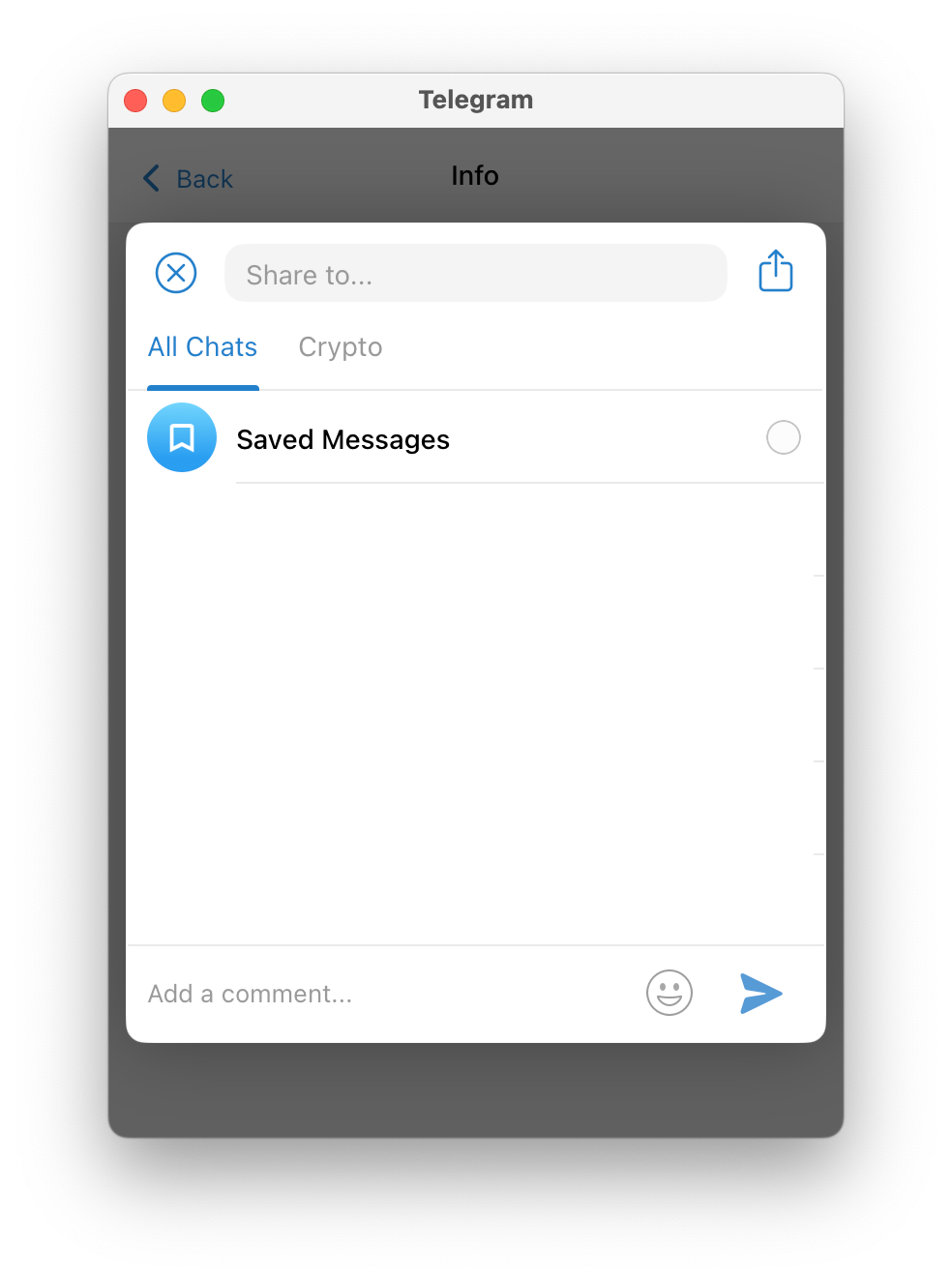
- Click the Share button, then the share icon at the top right corner, and then the “Copy Link” button
Great! Now, paste the link in the bot and all message notifications will go to the topic you chose.
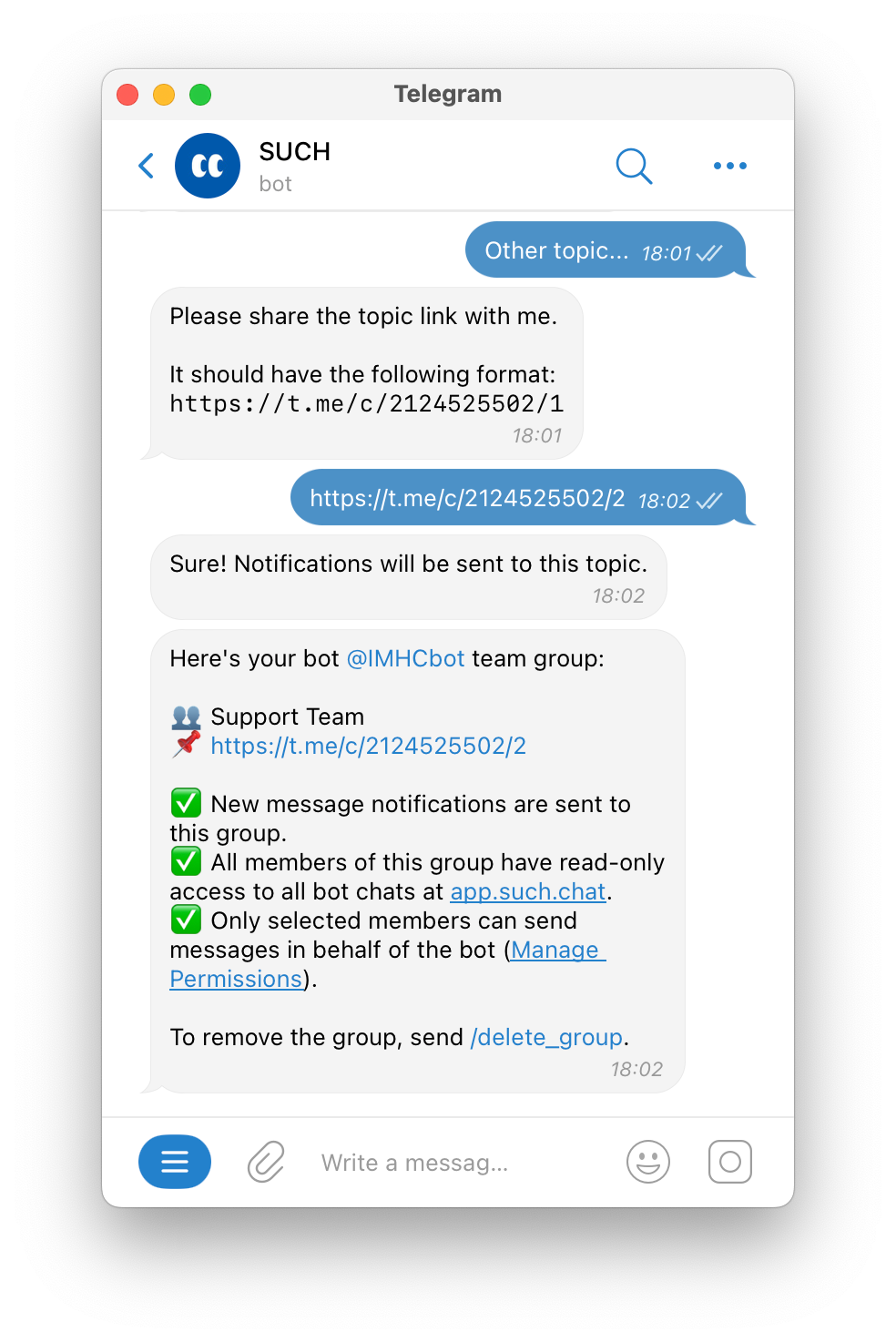
Everyone in the group can read these notifications in the SUCH web app. But, only your team members can reply to them.
If your group is already connected to SUCH and you want to start using topics, just disconnect and reconnect your group. Here's how:
- Send
/delete_groupto @SUCH. - Choose your group.
- Then, send
/teamto connect it again.